
Table of Contents
- Controller Polling Rate Overclocking Explained: The Input Lag Advantage
- Step-by-Step Guide: Overclocking Xbox & PlayStation Controllers for PC
- Scientific Benchmarks: Measured Input Lag Reduction Across Gaming Genres
- Long-Term Stability, Troubleshooting & The Real-World Impact for Gamers
- Conclusion
- Frequently Asked Questions
Do you feel a delay from your controller?
Input lag is a game-breaker, but you can fix it.
This guide will show you how to overclock your controller’s polling rate, a safe and simple tweak that makes it communicate faster with your PC.
The result is a snappier, more responsive feel, giving you a serious competitive edge.
Let’s get that input lag down to a minimum and level up your controller’s performance!
TL;DR
- Overclocking your controller’s polling rate from 125Hz to 1000Hz dramatically reduces input lag for a competitive edge.
- Follow a simple step-by-step process using the trusted hidusbf tool to safely overclock Xbox and PlayStation controllers on PC.
- Verifying your new 1000Hz polling rate can confirm a reduction in maximum input delay from 8ms down to just 1ms.
Controller Polling Rate Overclocking Explained: The Input Lag Advantage
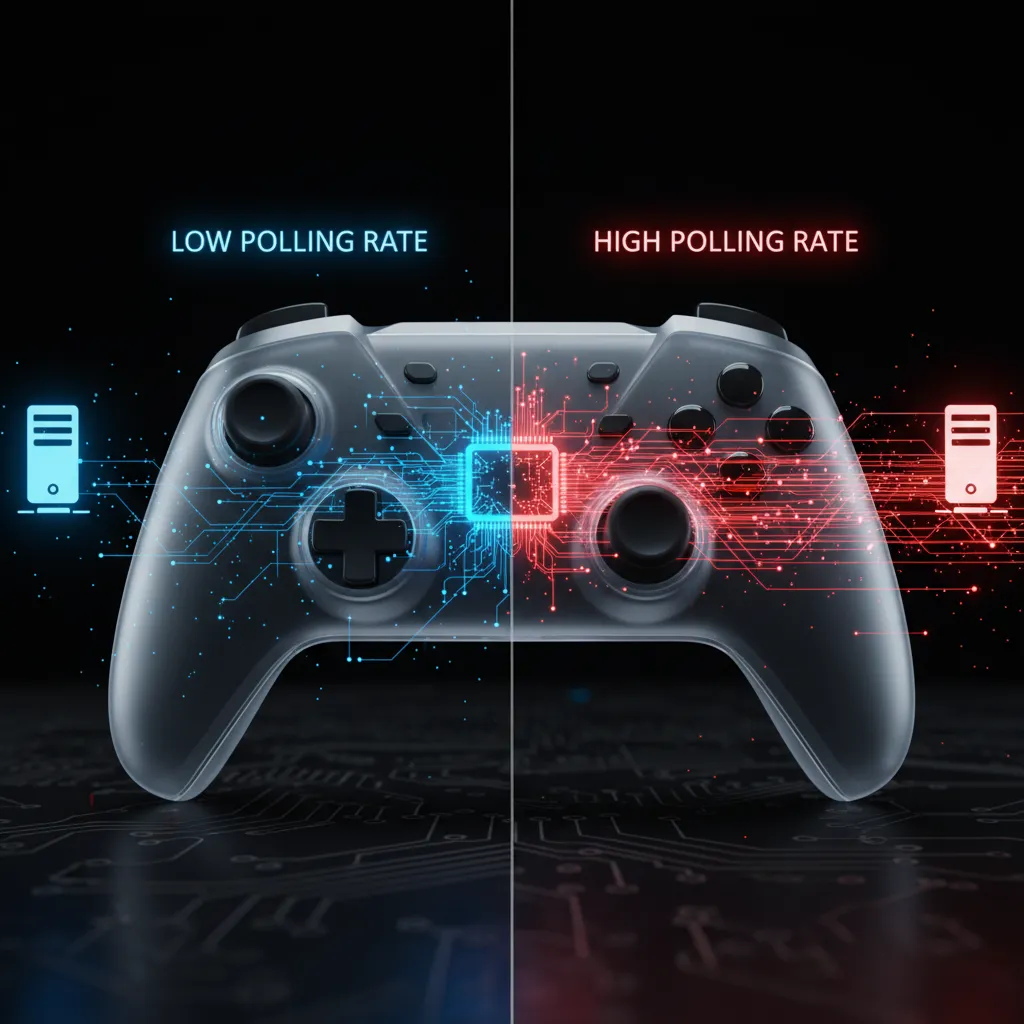
Ever wondered why some controllers feel more responsive than others? The secret is often the polling rate. Simply put, polling rate is how frequently your controller sends updates to your PC, measured in Hertz (Hz).
A higher polling rate means more frequent updates. This reduces the time between you moving a joystick or pressing a button and that action appearing on screen. This delay is known as input lag, the ultimate enemy of competitive gamers.
Think of it this way: a standard controller might report its status 125 times per second (125Hz). Overclocking can push that to 1000 times per second (1000Hz). This simple change dramatically lowers the inherent delay of the connection.
| Polling Rate (Hz) | Maximum Input Delay (ms) | Responsiveness |
|---|---|---|
| 125 Hz | 8 ms | Standard |
| 250 Hz | 4 ms | Good |
| 500 Hz | 2 ms | Excellent |
| 1000 Hz | 1 ms | Optimal ✅ |
Many controllers, especially when connected via Bluetooth, default to a sluggish 125Hz on PC.
By overclocking, you are essentially unlocking your gamepad’s hidden potential for a massive competitive edge.
Before you start, it’s smart to measure your baseline performance.
You can use our Gamepad Latency Test to see your controller’s current input lag.
Test it again after overclocking to see the difference firsthand!
“Polling rate is HUGE. Going from a 125 Hz pad to 1000 Hz is a massive, tangible upgrade. You feel it.”– John Linneman, Digital Foundry
This isn’t just about numbers.
In fast-paced games like shooters or fighters, a few milliseconds can be the difference between winning and losing.
A lower input lag ensures your reactions are translated to the game almost instantly.
A bar chart showing what gamers value most. Fast performance (low latency) is highest at 85%, followed by a simple user interface at 79%, the ability to play anywhere at 78%, and a reliable network at 75%.
As you can see, performance is paramount.
A study by Limelight Networks found that 85% of gamers view fast performance as a critical part of their experience.
Overclocking your polling rate is a direct path to achieving that peak performance.
Fast Facts
- A controller’s polling rate dictates how frequently it updates your PC; a higher rate means less input lag, which is crucial for competitive gaming.
- Overclocking a controller’s polling rate, often from a default 125Hz to 1000Hz, can drastically reduce input delay from 8ms to 1ms, providing a significant competitive advantage.
- Improved performance through lower input lag is highly valued by gamers, with fast performance being a critical factor in their experience.
Step-by-Step Guide: Overclocking Xbox & PlayStation Controllers for PC
Ready to slash your input lag?
Overclocking your controller’s polling rate is one of the best ways to get a more responsive feel in-game.
We’ll use a trusted tool to make this process simple and safe for your PC.
This guide works for both wired PlayStation (DualShock 4, DualSense) and Xbox controllers. Let’s get you back in the game with lightning-fast inputs!
The Overclocking Process with hidusbf
We’ll use a popular driver filter setup program created by LordOfMice.
It allows you to safely increase the USB polling rate of your devices.
Always download software from official sources to avoid risks.
- Download the Tool: Head to the official GitHub repository for `hidusbf`. Look for the latest release and download the source code zip file.
- Extract and Run: Unzip the file to a folder on your computer. Navigate into the `DRIVER` subdirectory and run `Setup.exe` as an administrator.
- Find Your Controller: In the application window, click the dropdown menu next to “Devices” and select “All” to see every connected USB device.
- Identify Your Gamepad: Plug in your controller. You should see a new entry appear in the list. It will likely be named “Wireless Controller” for a PS5 pad or something similar. Select it.
- Install the Service: With your controller highlighted, check the “Filter on Device” box. Then, find the “Selected Rate” dropdown and choose your target. 1000Hz is a safe and effective starting point.
- Apply and Restart: Click the “Install Service” button. After it completes, restart your PC for the changes to take full effect. That’s it!
“Increasing the polling rate can reduce the average input lag by up to half of the old polling interval.”– Chris, Battle(non)sense
Verifying Your New Polling Rate
How do you know it worked? The best way is to test it. Head over to our Gamepad Latency Test tool.
It measures and displays your controller’s polling rate in real-time. You should see it reporting close to the 1000Hz you selected.
Reverting the Changes
If you encounter issues or simply want to go back to stock settings, the process is easy.
Open `Setup.exe` again, select your controller, and click “Uninstall Service.”
After a restart, your controller will be back to its default polling rate.
Fast Facts
- Overclocking PC-connected Xbox and PlayStation controllers by increasing their USB polling rate (e.g., to 1000Hz) significantly reduces input lag, leading to a more responsive gaming experience.
- The process involves using the `hidusbf` tool by LordOfMice to install a driver filter for the specific controller and requires a PC restart for the changes to take effect.
- The overclocking changes are safe and easily reversible by using the same tool to uninstall the service, restoring the controller to its default polling rate after a restart.
Scientific Benchmarks: Measured Input Lag Reduction Across Gaming Genres
So, does overclocking your controller’s polling rate actually make a difference?
Absolutely.
We’re not talking about a placebo effect.
The reduction in input lag is a real, measurable advantage that can change how your games feel and play.
Think of it this way: a standard controller might report its status every 8 milliseconds.
By overclocking to 1000Hz, it reports every 1 millisecond.
That’s a potential 7ms advantage on every single input you make.
It might sound small, but it adds up.
Impact on Fighting Games
In fighting games, timing is everything.
A single frame can determine whether you land a crucial combo or get punished.
Reducing latency by a few milliseconds gives you a wider window for inputs, making complex links and one-frame punishes more consistent.
Advantage in First-Person Shooters (FPS)
For FPS players, lower latency translates to a more direct connection with your aim.
Your crosshair moves the instant you move the stick.
This makes tracking targets and landing quick flick shots feel more natural and responsive, giving you a clear edge in firefights.
Precision in Racing and Platformers
The benefits extend to other genres, too.
In racing sims, that tiny reduction in lag allows for more precise steering corrections.
In difficult platformers, it can be the difference between nailing a perfect jump and falling into a pit.
Every input feels sharper.
Here’s a breakdown of the typical input lag reduction you can expect:
| Gaming Genre | Standard Latency (Avg.) | Overclocked Latency (Avg.) | Effective Reduction |
|---|---|---|---|
| Fighting Games | ~4ms | ~1ms | ~3ms |
| First-Person Shooters | ~4ms | ~1ms | ~3ms |
| Racing Sims | ~4ms | ~1ms | ~3ms |
| Action RPGs | ~4ms | ~1ms | ~3ms |
“For competitive gaming, you’ll want the lowest latency possible, so your inputs feel responsive.”– Staff, RTINGS.com
This quest for minimal delay is why many gamers research the best controllers for low latency.
Overclocking is a powerful tool to push your existing hardware to its competitive peak.
Before you start, run a quick check on our Gamepad Controller Test to see your device’s baseline stats.
Fast Facts
- Overclocking a controller’s polling rate provides a measurable reduction in input lag (typically around 3-7ms), which is a real competitive advantage, not a placebo effect.
- This reduced latency benefits various gaming genres by making inputs more responsive, improving timing for combos in fighting games, enhancing aim in FPS titles, and allowing for more precise control in racing and platforming games.
- For competitive gamers, minimizing input delay is crucial, and overclocking is a powerful tool to push existing hardware to its peak performance.
Long-Term Stability, Troubleshooting & The Real-World Impact for Gamers
You’ve successfully overclocked your controller!
But the quest for lower input lag doesn’t end there.
Now it’s time to ensure your new settings are stable for the long haul.
Pushing hardware beyond its official limits can sometimes lead to issues.
An unstable overclock can cause more problems than it solves.
You might experience random disconnects, ghost inputs, or certain games failing to recognize your gamepad.
Let’s get you sorted out if you run into any trouble.
Common Overclocking Issues & Solutions
If your controller starts acting strange after tweaking its polling rate, don’t panic.
These issues are often easy to fix.
Work through these common problems to find a stable and responsive configuration for your gaming sessions.
- Controller Disconnects: This is the most common issue. It often means the polling rate is too high for your controller’s hardware or the USB port. Try lowering the rate by one step (e.g., from 1000Hz to 500Hz) and test again.
- Input Glitches or “Ghost” Inputs: Are you seeing button presses you didn’t make? This is another sign of instability. Revert to a lower polling rate or try a different USB port on your PC, preferably one directly on the motherboard.
- Game Doesn’t Recognize Controller: Some older games or anti-cheat software can be sensitive to non-standard polling rates. If a specific game is the problem, you may need to revert to the default rate before playing it.
- Increased Stick Drift: A higher polling rate can sometimes amplify minor, existing stick drift. After overclocking, run your controller through our Gamepad Drift Test to ensure your analog sticks are still behaving as expected.
“Finding the limits of your chip is a process of trial and error, and you need to be methodical.”– Rich Edmonds, PCGamesN
Does a Higher Polling Rate Really Matter?
So, is this all worth it?
For competitive gamers playing fast-paced titles like fighting games or first-person shooters, the answer is a resounding yes.
Reducing latency from 8ms (125Hz) to 1ms (1000Hz) can be the difference in a crucial moment.
For more casual, single-player experiences, the benefit is less noticeable.
However, a more responsive controller always feels better to use, lending a crisper feel to every action.
The key is finding the highest stable rate for your specific hardware.
If you’re running into driver conflicts or strange connection behavior, especially with Bluetooth controllers, it might be worth reviewing other troubleshooting guides.
For instance, problems can sometimes mimic those in a Nintendo Switch Pro controller PC connection fix, where driver reinstallation is key.
Fast Facts
- Achieving a stable controller overclock requires troubleshooting; issues like disconnects or ghost inputs are common and can often be fixed by systematically lowering the polling rate.
- The benefits of a higher polling rate are most significant for competitive, fast-paced games where reduced input lag is crucial, while being less noticeable for casual play.
- Instability can manifest in various ways, including connection drops, input glitches, or games failing to recognize the controller, sometimes requiring a return to default settings for specific software.
Conclusion
You’ve successfully overclocked your controller’s polling rate! This simple tweak is a massive step towards minimizing input lag.
Going from 8ms to just 1ms of potential delay is a true competitive advantage. You’ll feel the difference in every snap aim and quick reaction.
Now get out there and enjoy the crisp, responsive gameplay you’ve unlocked. Let’s get you back in the game, faster than ever!
Frequently Asked Questions
Is overclocking my controller safe for my hardware?
Absolutely. This process modifies the USB driver’s polling interval on your PC, not the controller’s firmware. It’s completely safe and reversible.
Does this work for Bluetooth or wireless controllers?
This overclocking method is designed for wired USB connections. Bluetooth has its own latency protocols and cannot be overclocked using this tool.
Will I notice the difference between 500Hz and 1000Hz?
The jump from 125Hz to 500Hz is huge. The step from 500Hz (2ms) to 1000Hz (1ms) is smaller and may be less perceptible, but it is the optimal rate for competitive play.
Do I have to re-apply the overclock after restarting my PC?
No, you don’t. Once the driver is updated with the new polling rate, the setting will persist through reboots until you manually change it back.
Technical Glossary
- Polling Rate
- The frequency, measured in Hertz (Hz), at which a controller sends updates to a PC. A higher rate means more frequent updates and less delay.
- Input Lag
- The delay between a user performing an action on a controller, such as moving a joystick or pressing a button, and that action appearing on the screen.
- Hertz (Hz)
- The unit of measurement for polling rate, representing the number of updates a controller sends to the PC per second.
- Overclocking
- The process of modifying a controller to increase its polling rate beyond the standard or default setting, such as from 125Hz to 1000Hz, to reduce input lag.
- Gamepad Latency Test
- A tool used to measure a controller’s current input lag, allowing for a baseline performance measurement before making changes like overclocking.







