
Table of Contents
Nothing’s worse than your Bluetooth controller dropping out mid-boss fight on your Android TV! It’s a classic, frustrating problem.
Don’t sweat it, though. We’ve got easy-to-follow steps to troubleshoot and fix that pesky connection issue for good.
No more lag, no more disconnects. Let’s get you back in the game, fast!
TL;DR
- High-speed USB 3.0 ports emit radio frequency noise that interferes with the 2.4 GHz band used by Bluetooth controllers.
- Physically move your Bluetooth dongle away from USB 3.0 ports using a short extension cable to improve signal integrity.
- Connect your Android TV to a 5 GHz Wi-Fi network to reduce congestion on the 2.4 GHz frequency, leaving it clear for your gamepad.
- Changing the Bluetooth AVRCP version in your Android TV’s Developer Options can resolve underlying connection stability issues.
Solving USB 3.0 and Wi-Fi Frequency Interference
One of the most overlooked culprits for controller disconnects is invisible noise. Your Android TV likely has high-speed USB 3.0 ports for storage.
While great for data, these ports are notorious for emitting radio frequency interference. This noise sits directly in the 2.4 GHz wireless band.
Since Bluetooth controllers also operate at 2.4 GHz, this creates a traffic jam. Your gamepad commands get lost in the static from the USB port.
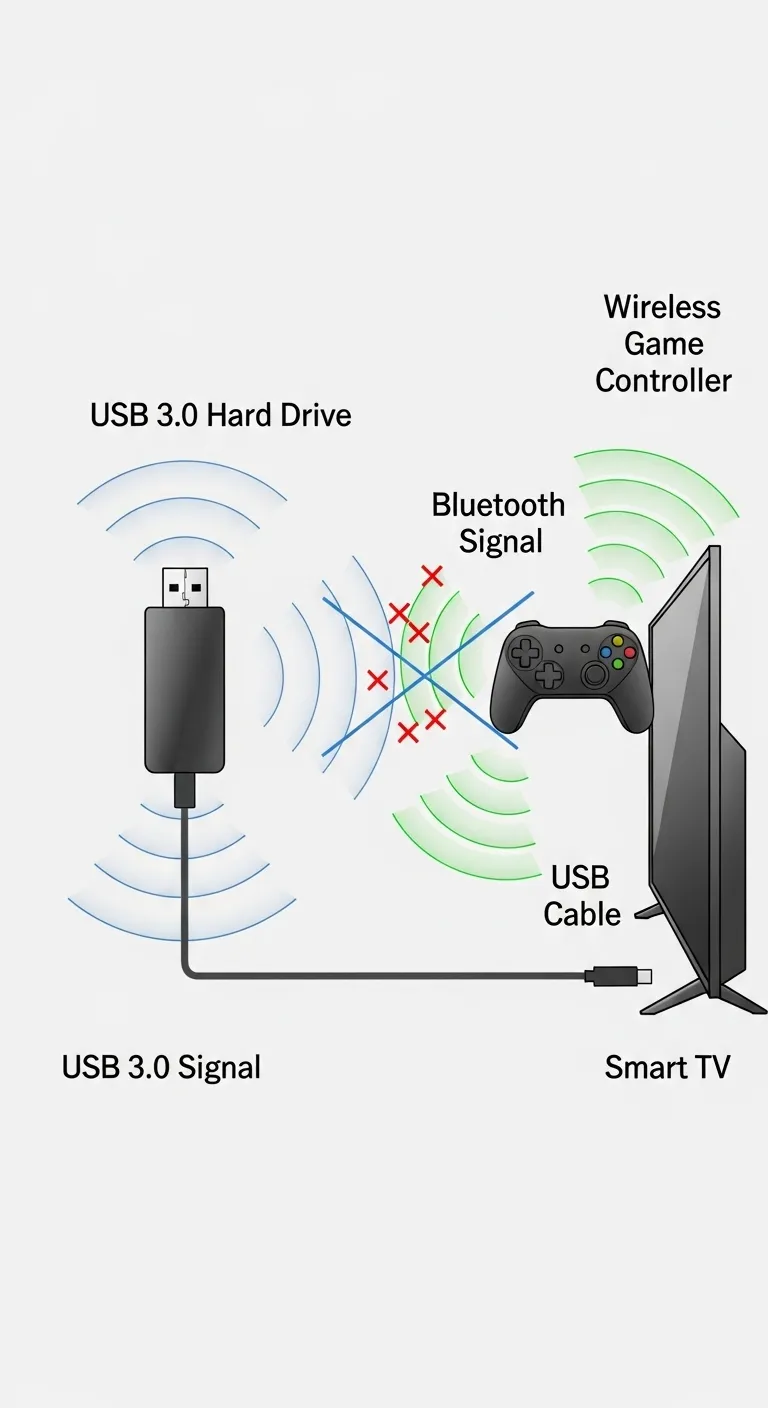
“The noise generated from high data traffic on USB 3.0… can interfere with wireless devices operating in the 2.4 GHz band.”– Intel Corporation
Distance is Your Best Friend
The interference from USB 3.0 ports is localized but potent. If you use a USB Bluetooth dongle, plugging it directly next to a hard drive is bad news.
The solution is surprisingly analog. Use a short USB 2.0 extension cable to move your Bluetooth receiver away from the noise source.
Even a few inches of separation can drastically improve signal integrity. This clears the airwaves for your input commands to travel safely.
The Wi-Fi Congestion Factor
It’s not just USB ports causing trouble. Your home Wi-Fi network likely broadcasts on the 2.4 GHz frequency as well, competing for the same airspace.
In a dense apartment complex, dozens of networks overlap. This saturation leads to packet loss, which you experience as skipped button presses.
A bar chart illustrating how active USB 3.0 ports can degrade wireless receiver sensitivity by roughly 20%, impacting connectivity range.
If your router supports it, connect your Android TV to the 5 GHz band. This completely removes the TV’s Wi-Fi traffic from the controller’s path.
If you are unsure if interference is causing delays, you can verify your connection quality using our Gamepad Latency Test tool.
Steps to Clear the Airwaves
Follow this checklist to minimize signal interference around your entertainment center. Small changes here often yield the biggest stability gains.
- Isolate the Dongle: Use a USB extender cable to move the Bluetooth receiver away from the TV chassis and other USB devices.
- Switch Frequencies: Connect your Android TV and phone to the 5 GHz Wi-Fi band to free up the 2.4 GHz lane for your gamepad.
- Unplug Unused Devices: Remove any USB 3.0 hard drives or flash drives from the TV when you are gaming to stop the noise at the source.
- Check Line of Sight: Ensure there are no metal objects or thick glass between your controller and the TV receiver.
Understanding how to use a 2.4G wireless controller effectively involves managing this spectrum. Clear signal paths mean better gaming.
Fast Facts
- High-speed USB 3.0 ports emit radio frequency noise that directly interferes with the 2.4 GHz band used by Bluetooth controllers, leading to connection drops.
- You can improve signal integrity by using a USB 2.0 extension cable to physically distance Bluetooth receivers from USB 3.0 ports and hard drives.
- Switching devices to the 5 GHz Wi-Fi band reduces spectrum congestion, freeing up the 2.4 GHz frequency for smoother gamepad performance.
Optimizing Bluetooth AVRCP via Developer Options
Sometimes, the standard settings just don’t cut it. Your Android TV has a hidden menu called Developer Options that houses powerful connectivity tools.
One specific setting here is the Bluetooth AVRCP version. While mainly for audio, changing this version can stabilize the entire Bluetooth stack.
This simple tweak often fixes random disconnects with newer gamepads. Let’s unlock this menu and tweak the settings to get your controller stable.
“You can configure the Bluetooth AVRCP version… which defines how the device communicates with other Bluetooth equipment to ensure compatibility.”– Android Developers, Media App Architecture
Steps to Change Bluetooth AVRCP Version
Follow these steps carefully to modify the Bluetooth profile version on your Android TV system. This is a safe procedure that is easily reversible.
- Navigate to Settings and select Device Preferences.
- Scroll down to the About section and find the Build number.
- Click the Build option 7 times rapidly until you see a prompt saying “You are now a developer!”
- Go back to the previous menu and open the newly visible Developer Options.
- Locate Bluetooth AVRCP Version in the networking list.
- Change the version from the default (usually 1.4) to 1.5 or 1.6.
- Restart your TV immediately to apply the changes effectively.
After the system reboots, reconnect your controller. You should notice an immediate improvement in connection stability during your gaming sessions.
Once connected, it’s smart to verify the signal integrity. Run a quick check using our Gamepad Latency Test to ensure the dropouts are gone.
If you are still facing issues with specific Android-compatible controllers, you might need to reset your pairing method completely.
For users with specialized mobile controllers, our guide on how to connect a Mocute gamepad to Android offers helpful pairing fundamentals.
Fast Facts
- Modifying the Bluetooth AVRCP version within the Android TV Developer Options can stabilize the Bluetooth stack and resolve random gamepad disconnects.
- To apply this fix, users must enable Developer Options by clicking the ‘Build’ number seven times, change the AVRCP version to 1.5 or 1.6, and restart the TV.
Clearing System Bluetooth Cache and Data
If your controller keeps dropping out, the culprit might be invisible. Android TV stores temporary files to speed up wireless connections.
However, these files can become corrupt over time. This corruption often leads to those annoying disconnection issues right in the middle of a game.
Clearing the Bluetooth cache acts like a soft reset for your system’s wireless brain. It forces the TV to forget old, potentially bad data.
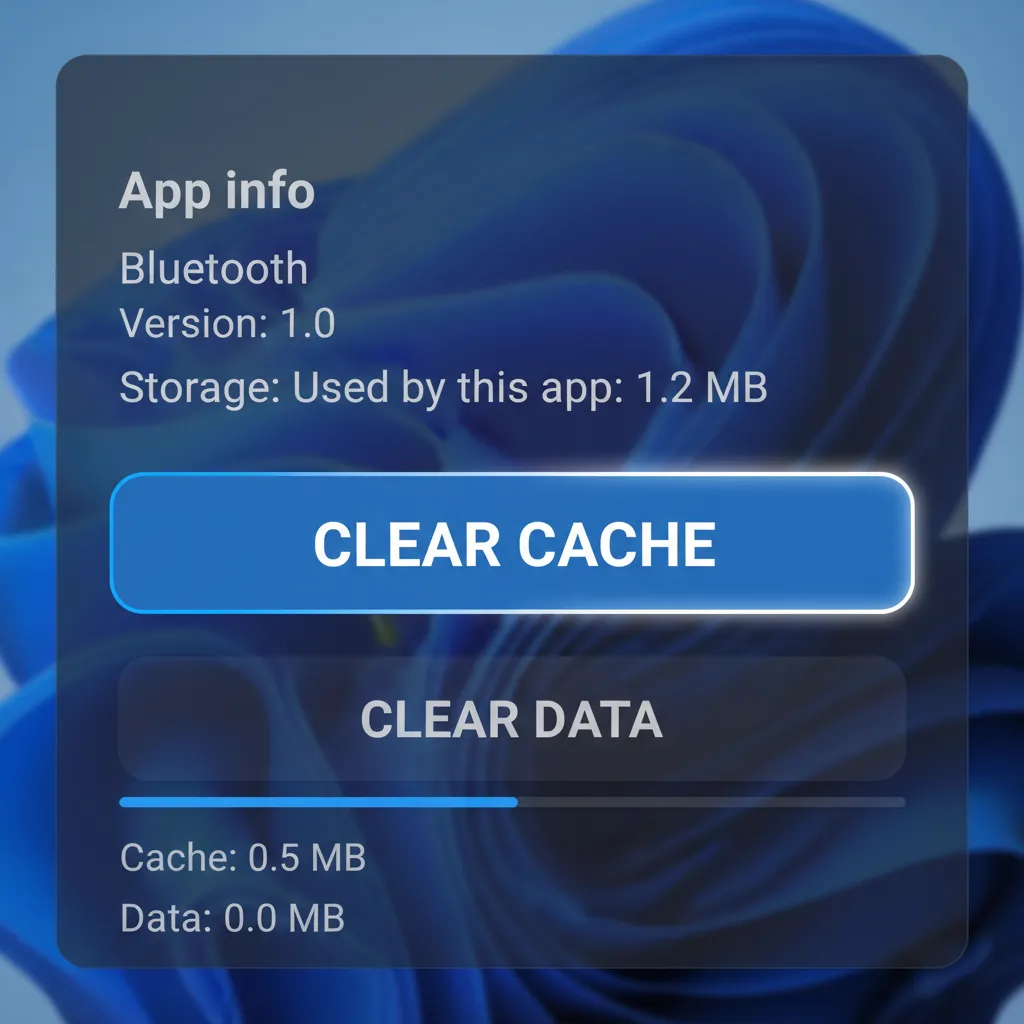
How to Clear Bluetooth Cache on Android TV
Follow these steps to wipe the slate clean. Note that menu names might vary slightly depending on your TV brand, such as Sony, TCL, or Hisense.
- Open Settings from the home screen (usually the gear icon).
- Select Apps and then click on See all apps.
- Scroll down and choose Show system apps. This step is crucial as Bluetooth is a system app.
- Find Bluetooth (sometimes labeled “Bluetooth Share”) in the list and select it.
- Select Clear Cache first, then select Clear Data and confirm your choice.
- Restart your Android TV completely to apply the changes effectively.
“Select Clear data and Clear cache… This will reset the application to its default settings and may resolve the issue.”– Sony Support, Troubleshooting Bluetooth connection issues
After the restart, your list of paired devices will likely be empty. This is normal and actually part of the fix to ensure a fresh start.
You’ll need to re-pair your controller as if it were new. This establishes a clean handshake without previous errors getting in the way.
The pairing process is generally the same across devices. Whether you need to connect a Mocute controller to Android or a standard Xbox pad, the steps remain consistent.
Once you’re reconnected, don’t jump straight into a ranked match. Test the connection stability first to ensure the dropouts are gone.
We recommend running a quick Game Controller Vibration Test. If the rumble is consistent and the signal holds, you are ready to game.
Fast Facts
- Corrupt temporary Bluetooth files on Android TV can cause controllers to frequently disconnect or drop out.
- Clearing the Bluetooth system app’s cache and data acts as a soft reset to remove potentially bad data.
- After clearing the data and restarting the TV, users must re-pair their controllers to establish a fresh connection.
Stabilizing Connections with the Bluetooth Auto Connect App
If your Android TV persistently drops your controller connection, the native Bluetooth stack might be the culprit. It often aggressively saves power.
To counter this, many gamers rely on a specific utility called “Bluetooth Auto Connect.” This app acts as a bridge to force the connection to stay alive.
It works by running a background service that automatically attempts to reconnect your gamepad whenever the signal dips or the OS tries to kill it.
“Radio frequency interference (RFI) is a common cause of poor wireless performance… sources include cordless phones, microwave ovens, and wireless cameras.”– Cisco Systems, Wireless Interference Guide
Step-by-Step Configuration Guide
Getting this app running on a TV interface requires a few specific tweaks. Follow these steps to lock in your signal.
- Install the App: You may need to sideload “Bluetooth Auto Connect” if it does not appear in your TV’s Play Store.
- Access Advanced Options: Open the app and navigate to the settings menu. Look for “Advanced Options” near the bottom.
- Set Continuous Connect: Enable this feature and set the timer to roughly 2 to 5 seconds. This forces frequent checks.
- Select Your Device: Go to the “Devices” list and check the box next to your specific controller name.
Once configured, ensure the app stays open in the background. Do not force close it, or the stabilization service will stop working immediately.
Understanding Interference Factors
Sometimes the app fights a losing battle against physical interference. Knowing what blocks your signal helps you position your setup better.
A pie chart showing common interference sources: Wi-Fi Networks (45%), Physical Obstacles (25%), Other Bluetooth Devices (20%), and Appliances (10%).
If you have reduced interference and the app is running, your connection should hold. Now’s the time to verify your input performance.
Head over to our Gamepad Drift Test to confirm that the stabilization hasn’t introduced any input lag or ghost movements.
If you are using a newer operating system and this method fails, you might face OS-level restrictions.
Check our guide on fixing Panda Gamepad Pro on Android 12 for similar mapping and permission solutions.
Fast Facts
- The Bluetooth Auto Connect app resolves Android TV controller disconnections by running a background service that overrides the native Bluetooth stack’s aggressive power-saving features.
- For effective signal stabilization, users must configure the app to ‘Continuous Connect’ every 2 to 5 seconds and ensure the utility remains active in the background.
- While the app addresses software drops, users should also mitigate radio frequency interference from Wi-Fi networks and appliances to maintain connection quality.
Checking Batteries, Distance, and Physical Obstructions
Before diving into complex software settings, let’s look at the most common physical culprits. A weak power source is the number one reason for instability.
Bluetooth radios require consistent voltage to maintain a lock. As batteries deplete, the radio signal weakens, causing intermittent disconnects.
If you use rechargeable packs, remember that they degrade over time. A battery showing “full” might actually drop voltage under heavy load.
This is especially true when haptic feedback kicks in. Rumble motors draw significant power, which can momentarily starve the Bluetooth radio.
If your controller cuts out specifically during explosions or crashes in-game, try disabling vibration to see if stability returns.
If your controller struggles to hold power even while plugged in, the hardware connection might be at fault.
Check our guide on How to Fix a Loose Controller Charging Port: A DIY Guide to rule out physical damage.
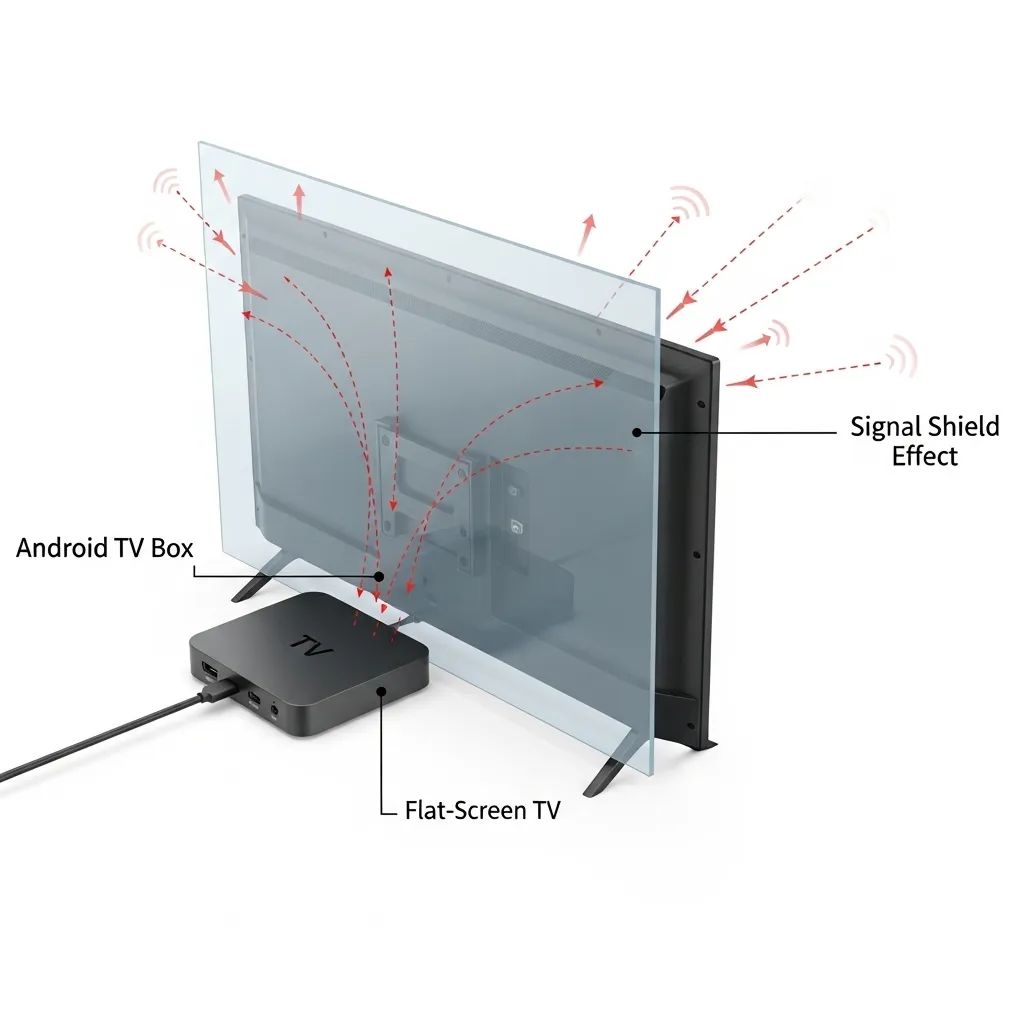
The “Line of Sight” Rule
Bluetooth has a theoretical range of about 33 feet (10 meters). However, this assumes a clear path without interference or obstructions.
In a real living room, your effective range is likely closer to 10 or 15 feet. Every physical object between you and the TV reduces signal strength.
The Android TV box placement is often the issue. If you stick the box behind the TV, the metal plate inside the television acts as a shield.
Move your Android TV box to the front of the cabinet. Use a short HDMI extension cable if necessary to get the receiver out into the open.
“Check for interference… from… Aquariums… Metal shelving… microwave ovens.”– Nintendo Support, Joy-Con Controller Connectivity Issues
Material Interference Chart
Not all obstacles are created equal. Some materials let radio waves pass, while others absorb or reflect them entirely.
We gathered data on how common household materials impact signal strength. This helps you identify what might be blocking your gameplay.
A bar chart showing that Metal (26dB) and Concrete (15dB) cause the highest signal loss, while Wood and Glass (3dB) cause the least.
Metal is the absolute worst offender. If your Android TV box is inside a metal media cabinet, you will almost certainly face connection drops.
Common Obstruction Checklist
Run through this quick checklist to clear the path for your controller signal. A few small adjustments can drastically improve latency.
| Obstruction | Impact | Quick Fix |
|---|---|---|
| TV Screen | High | Move the box out from behind the TV. |
| Fish Tank | High | Water absorbs 2.4GHz signals. Move it away. |
| USB 3.0 Drives | High | Use a shielded extension cable for hard drives. |
| Human Body | Medium | Don’t hide the controller under a blanket or leg. |
| Glass Cabinet | Low | Usually fine, but keep the doors open if testing. |
Finally, ensure you aren’t accidentally covering the antenna line on the controller with your hands. This is common during intense gaming moments.
Once you have cleared the physical path, you can use our Gamepad Controller Vibration Test to ensure your motors are not draining too much power during operation.
Fast Facts
- Instability is often caused by weak power sources or voltage drops during heavy loads like haptic feedback, so check battery health and try disabling vibration.
- Bluetooth range is significantly reduced by physical obstructions, so avoid placing receivers behind TVs or inside metal cabinets to maintain a clear line of sight.
- Specific materials and devices, such as metal, aquariums, and USB 3.0 drives, cause high interference and should be moved away from the signal path.
Conclusion
Bluetooth disconnects shouldn’t ruin your win streak. You now know that USB noise and Wi-Fi crowding are the real enemies here.
By moving your dongle with an extender and switching to 5 GHz Wi-Fi, you clear the path for your commands.
Level up your setup and get back in the game. A stable connection is the best upgrade you can make today!
Frequently Asked Questions
Why does my Android TV controller keep disconnecting?
It’s often signal interference. High-speed USB 3.0 ports and crowded 2.4 GHz Wi-Fi networks jam the Bluetooth signal.
How does a USB extension cable help?
It moves the receiver away from “noisy” hardware. Even a few inches of distance can stop USB 3.0 static from killing your connection.
Does 5 GHz Wi-Fi fix controller lag?
Yes! Connecting your TV to 5 GHz frees up the 2.4 GHz band. This gives your Bluetooth controller a dedicated lane for data.
Can low batteries cause disconnects?
Definitely. As voltage drops, the Bluetooth radio gets weaker. Swap in fresh batteries to rule out power issues immediately.
Technical Glossary
- Radio Frequency Interference
- Invisible noise emitted by electronic devices, such as USB 3.0 ports, which disrupts wireless signals operating on the same frequency, like the 2.4 GHz band used by Bluetooth controllers.
- 2.4 GHz Wireless Band
- A specific radio frequency used by many common wireless devices, including Bluetooth controllers and Wi-Fi networks, making it susceptible to signal congestion and interference.
- Signal Integrity
- A measure of the quality and reliability of a wireless signal. High signal integrity ensures input commands are transmitted without being lost or corrupted by interference.
- Packet Loss
- The failure of data packets to reach their destination due to signal interference or network saturation. For gamers, this is experienced as skipped button presses or input lag.
- Bluetooth Dongle
- A small USB device that acts as a Bluetooth receiver, allowing a primary device like a TV to connect wirelessly with a peripheral, such as a gamepad.







