
Got your favorite controller connected to your Steam Deck, but it’s not working in-game?
Super frustrating, we know! Don’t sweat it.
This guide is your ultimate fix-it list for common connection problems.
We’ll walk you through simple Steam settings and controller order adjustments to get you sorted in minutes. Let’s get you back in the game, fast!
TL;DR
- The most common reason for an external controller not working is the Steam Deck assigning its built-in controls to the ‘Player 1’ slot.
- You can fix this by launching your game, pressing the Quick Access button (…), and using the ‘Reorder Controllers’ option to move your external gamepad to the first position.
- For persistent issues, ensure your external controller is powered on before launching the game to help SteamOS assign priority correctly.
- Enabling Steam Input for your specific gamepad in the game’s controller settings can resolve compatibility issues, especially with older titles.
Mastering the Order: Rearranging Controller Priority in Quick Settings
One of the most frustrating moments for a Steam Deck owner is navigating the menu perfectly, only to have the controller go dead when the game starts.
This happens because the Steam Deck often defaults to its built-in controls as “Player 1,” relegating your external gamepad to the “Player 2” slot.
Fortunately, Valve has built a specific tool into the Quick Access menu to solve this input conflict without forcing you to restart your game.
Step-by-Step: Reordering Your Controllers
You can force the Steam Deck to recognize your external hardware as the primary input device while the game is running. Follow this exact sequence:
- Launch your game: You must be inside the game (not just the SteamOS menu) for this setting to appear correctly.
- Press the Quick Access button: This is the button with three dots (…) located on the bottom right of the Deck face.
- Navigate to Controller Settings: Scroll down to the icon that looks like a gamepad to open the specific input menu.
- Select “Reorder Controllers”: This option is usually at the top of the list. If it is missing, wake up your external gamepad.
- Move External to Position 1: Use the D-pad to highlight your external controller and move it to the top slot (1).
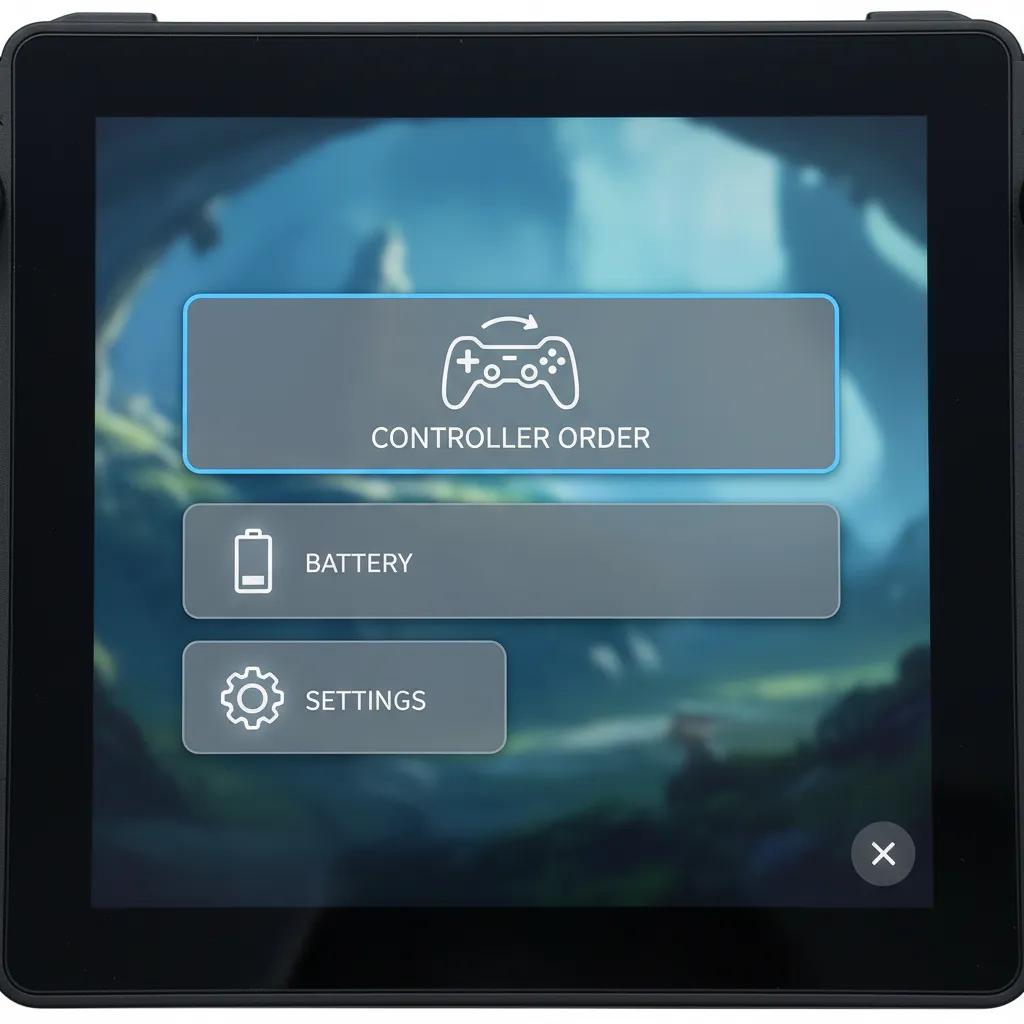
Once you swap the order, the game should immediately respond to your external inputs. The Deck’s built-in controls will shift to the secondary slot.
“Steam Input is a service that allows Steam users to play any controller-supported game with the device of their choice. It translates the user’s input into something the game understands.”– Valve Corporation, Steamworks Documentation
Troubleshooting Persistent Priority Issues
If the controller order resets every time you launch a new session, the issue might be related to how the specific game handles Linux input calls.
Some users find that mapping tools can interfere with this process.
If you are experimenting with advanced setups, check our guide on top Linux gamepad mapping tools.
Always ensure your external device is powered on before launching the game. This gives SteamOS a better chance of assigning it the correct priority.
It is also vital to confirm your hardware is actually sending signals. A quick check on the Gamepad Latency Test can rule out connection lag.
A bar chart showing controller usage share: Xbox (60%), PlayStation (27%), and Other (13%).
Understanding these statistics helps you realize that while Xbox controllers are standard, Steam Deck must juggle various input protocols (XInput, DirectInput).
By mastering the reorder menu, you ensure that no matter what brand of controller you connect, you remain in control of the action.
Fast Facts
- Steam Deck often defaults its built-in controls to Player 1, causing external gamepads to be recognized as Player 2.
- You can reorder controller priority while a game is running by accessing the Quick Access menu, navigating to Controller Settings, and selecting “Reorder Controllers” to move your external gamepad to Position 1.
- To avoid persistent issues, always ensure your external controller is powered on before launching the game, and be aware that some mapping tools might interfere with the process.
Optimizing Steam Input and Proton for Compatibility
When your Steam Deck external controller is not working in-game, the culprit is often a communication breakdown between the hardware and the software.
The game might see the Deck’s built-in controls as “Player 1” and ignore everything else. We need to tell SteamOS exactly how to handle your inputs.
Leveraging Steam Input to Force Detection
Steam Input is Valve’s translation layer. It takes signals from your PS5, Xbox, or generic controller and converts them into standard commands.
Many older titles do not natively support modern gamepads. Enabling Steam Input forces the game to recognize your device as a generic controller.
How to enable it:
- Select the game in your Library but do not launch it yet.
- Navigate to the Controller icon on the right side of the screen.
- Click on Controller Settings.
- Ensure Steam Input is enabled for your specific gamepad.
If you suspect the translation is causing delays, you can verify performance using our Gamepad Latency Test tool.
The Critical Step: Reordering Controllers
This is the most common oversight. By default, the Steam Deck assigns its own buttons and sticks to the first slot, pushing your gamepad to the second slot.
If your external controller connects as “Player 2,” single-player games will likely ignore it completely. You must swap the order manually.
Steps to reorder:
- Launch your game.
- Press the Quick Access button (the “…” button).
- Go to Rearrange Controller Order.
- Move your external gamepad to position 1.
“You can map buttons to keyboard keys, mouse buttons, or even other gamepad buttons… This is useful for games that don’t support controllers.”– Valve, Steam Support FAQ
Adjusting Proton Layers for Input Recognition
Since SteamOS is Linux-based, it uses Proton to run Windows games. Sometimes, a specific version of Proton fails to pass controller data correctly.
Switching to Proton Experimental often resolves these handshake issues. It contains the latest fixes for hardware compatibility.
For those diving deeper into Linux configuration, checking out Top Linux Gamepad Mapping Tools can provide advanced solutions.
Steam Input vs. Native Support
Understanding when to use Valve’s wrapper versus the game’s built-in support can save you hours of troubleshooting connectivity issues.
| Feature | Steam Input Enabled | Native Support |
|---|---|---|
| Button Remapping | ✅ Full Customization | ❌ Limited/None |
| Gyro Support | ✅ Yes (Emulated) | ❌ Rare |
| Plug & Play | ✅ High Consistency | ❌ Hit or Miss |
| Game Icons | ❌ Generic Prompts | ✅ Correct Icons |
Controller Usage Trends
Controller gaming on PC and Steam Deck is growing rapidly. Ensuring your setup works is vital as more titles are designed with gamepads in mind.
According to Valve’s data, the number of daily active users playing with a controller has more than quadrupled in recent years.
A bar chart showing the growth of daily active controller users on Steam from 11.2 million in 2018 to 48 million in 2022.
Fast Facts
- Enable Steam Input for your specific gamepad to ensure older or unsupported games recognize your external controller.
- Crucially, reorder controllers in the Quick Access Menu to place your external gamepad as ‘Player 1’ to prevent single-player games from ignoring it.
- If controller data issues persist, try switching the game’s Proton layer to Proton Experimental for the latest hardware compatibility fixes.
Solving Controller Issues in Non-Steam Games and Emulators
Running non-Steam games or emulators on your Steam Deck opens up a massive library, but it often breaks external controller support. The system tends to prioritize its built-in controls over your gamepad.
Reordering Controllers in Game Mode
The most common culprit is the “Player 1” assignment.
SteamOS defaults the handheld controls to the first slot, pushing your external gamepad to Player 2. Most single-player games simply ignore Player 2.
You must manually force the external gamepad to the front of the line while the game is running. This simple switch is often the only fix required for games launched through Heroic or Lutris.

Follow these steps to reassign your controller priority:
- Press the Quick Access button (the “…” button) on your Steam Deck.
- Navigate down to the Controller Settings menu option.
- Select Rearrange Controller Order at the top of the list.
- Highlight your external controller and move it to Position 1.
“The biggest friction point is the controller ordering… frequently the Deck thinks it is player one.”– Sean Hollister, The Verge
Forcing the Right Input Template
Non-Steam games often fail to recognize an external controller because the Deck defaults to a “Desktop” layout. This configuration maps your buttons to keyboard keys like Space or Enter, rather than joystick inputs.
To fix this, open the overlay and click the current layout name.
Navigate to the Templates tab and select Gamepad with Joystick Trackpad.
This sends standard XInput commands that games recognize.
Configuring Emulators and Raw Input
Emulators like RetroArch or EmuDeck operate differently.
They can sometimes read “raw” inputs directly from the hardware, bypassing Steam Input entirely. This can cause double inputs or dead zones.
If your sticks feel unresponsive in an emulator, you should first verify the hardware signal.
Switch to Desktop Mode and run a Gamepad Drift Test in your browser to confirm the axis data is clean.
Understanding how joystick controllers work regarding axis mapping is vital here. In emulator settings, ensure your input driver is set to “sdl2” for the best compatibility with SteamOS.
Heroic Launcher, Lutris, and EmuDeck Configurations
When you venture beyond the native Steam interface, controller configurations can get tricky. Launchers like Heroic, Lutris, and EmuDeck handle inputs differently, which can cause your external gamepad to stop working in-game.
Let’s get these popular launchers configured correctly so you can jump back into your favorite non-Steam titles.
The key is often telling Steam Input to step aside and let the launcher or the game take direct control.
Heroic Games Launcher Solutions
Heroic Launcher, which manages Epic Games and GOG libraries, doesn’t always inherit Steam’s controller settings. If your gamepad is dead in a Heroic game, you may need to adjust settings on a per-game basis.
- Open the game’s settings page within Heroic Launcher.
- Look for an “Other” or “Advanced” tab.
- Find the option for “Enable Steam Runtime” and try toggling it on or off.
- Some games may also have an option to “Use Game’s Own Controller Support,” which can be effective.
- As a final step, add the game to Steam as a “Non-Steam Game” to force it to use Steam Input.
Lutris Configuration Tips
Lutris is a powerful tool for running many types of games, but its flexibility can introduce complexity.
Controller issues here often stem from the specific runner being used for the game (like Wine or Proton).
First, confirm your Steam Deck detects the controller at a system level.
A quick visit to our Gamepad Controller Test will show you if the inputs are being registered at all. If they are, try these steps in Lutris:
- Right-click the game and select “Configure.”
- Go to the “System options” tab.
- Scroll down to the “Disable Steam runtime” option and try enabling it. This can prevent conflicts.
- In the “Runner options,” check for any controller-specific settings that might be available for your game’s runner.
EmuDeck and RetroArch Settings
EmuDeck simplifies emulation on the Steam Deck, but it relies on underlying emulators like RetroArch for input mapping.
A misconfiguration here can affect dozens of classic games. Usually, you only need to set it up once.
If your controls feel off or unresponsive in emulators, check for unwanted analog stick movement with our Gamepad Drift Test.
A clean test means the issue is likely in the software configuration.
“The first thing to try, and the solution to 90% of controller issues with EmuDeck is to reset the controller configuration via the EmuDeck app.”– The EmuDeck Team, EmuDeck Wiki
To do this, open EmuDeck, go to “Manage Emulators,” then “Reset Controller Configs.” This forces all emulators to re-detect your controllers and apply a fresh, default layout, solving most input problems.
Resolving Desktop Mode vs. Gaming Mode Input Conflicts
The Steam Deck’s power comes from its two modes: the console-like Gaming Mode and a full Linux Desktop Mode.
This flexibility can sometimes cause input conflicts, where your controller works in one mode but not in-game.
Let’s get it sorted.
Steam Input’s Dual Personality
Think of Steam Input as a universal translator for your controller. In Gaming Mode, it is smart, applying custom profiles for each game.
In Desktop Mode, it often defaults to emulating a keyboard and mouse, which can confuse games expecting a gamepad.
Before diving into settings, it’s wise to confirm your controller is being detected correctly. Use a Gamepad Controller Test to check if all buttons, triggers, and analog sticks are responding.
This rules out hardware issues first.
Setting the Right Controller Order in Gaming Mode
Often, the problem is simple: the game sees the Steam Deck’s own controls as Player 1. Your external controller is then assigned to Player 2, and the game ignores it.
Here’s how to reorder them and take the top spot for your game:
- With your game running, press the Quick Access Menu button (the ‘…’ button on the right).
- Navigate to the Controller icon to open the Controller settings tab.
- Select the “Reorder controllers” option.
- Use the D-pad to move your external controller up into the first slot. The change takes effect instantly.
This simple trick solves the issue for a vast majority of single-player games that only listen for input from the primary controller.
“Steam Input is an incredibly powerful system, one that really can let you play pretty much any game with any controller and it’s a huge part of what makes the Steam Deck work so well.”– Liam Dawe, GamingOnLinux
Taming Your Controller in Desktop Mode
When you launch a non-Steam game from Desktop Mode, you might be using the default desktop configuration. This is rarely what you want for gaming.
The best solution is to add the game to your Steam library for full control and customization.
Open Steam in Desktop Mode, go to the “Games” menu at the top, and select “Add a Non-Steam Game to My Library…”
Once it’s added, you can launch it from Gaming Mode and manage its controller profile just like any other Steam title.
This gives you full access to community layouts and the powerful customization tools of Steam Input, ensuring your controller behaves exactly as intended.
Fast Facts
- The most common fix for controller issues in non-Steam games and emulators is to manually reorder controllers in the Quick Access menu, ensuring your external gamepad is set as Player 1.
- Many non-Steam games fail to recognize controllers because the Steam Deck defaults to a “Desktop” input layout. Changing this to “Gamepad with Joystick Trackpad” in the overlay usually resolves the issue.
- For games launched via Heroic or Lutris, or within emulators, specific per-game or system-level configurations are often required, such as toggling “Enable Steam Runtime” or ensuring the correct input drivers (e.g., “sdl2” for emulators) are selected.
Take Back Control and Game On
Don’t let controller priority issues sideline your gaming session. This is the most common culprit when your external gamepad stops working in-game.
The fix is just a few button presses away in the Quick Access Menu. Simply promote your external controller to the top slot, and you’re all set.
Now that you’ve leveled up your controller knowledge, get back to what matters most: playing your favorite games without any interruptions!
Frequently Asked Questions
Why does my controller work in the Steam menu but not in-game?
This classic issue happens when the Deck assigns itself as Player 1. Your external controller is seen as Player 2, and the game ignores it.
The “Reorder Controllers” option is missing in the menu. What’s wrong?
Make sure your external gamepad is on and properly connected. This menu option only shows up in-game when the Deck detects multiple controllers.
Do I have to do this every time I launch a game?
Typically, no. SteamOS is smart and should remember your preference. Some specific games or updates might occasionally reset this setting, however.
What if reordering the controllers doesn’t solve the problem?
First, test your gamepad on another device to rule out hardware failure. Then check for game-specific controller layouts in Steam’s settings.
Technical Glossary
- Steam Deck
- A handheld gaming computer which, by default, often assigns its built-in controls to the ‘Player 1’ slot, sometimes causing conflicts with external gamepads.
- SteamOS
- The operating system running on the Steam Deck, which is responsible for how input devices are assigned priority when a game is launched.
- Steam Input
- A service that translates a user’s controller input into a format the game understands, allowing various devices to be used with any controller-supported game.
- XInput
- An input protocol commonly used by controllers like the Xbox gamepad, which the Steam Deck must handle to ensure compatibility across different hardware.







