Table of Contents
Is the rumble on your Xbox Series X|S controller throwing off your aim or feeling lackluster on PC? Precision is key, and stock settings rarely cut it.
Whether you need to dial back the shake for competitive play or crank it up for immersion, customizing your haptics is a game-changer.
I’ll walk you through using the Xbox Accessories app to fine-tune those motors exactly how you like them. Let’s level up your controller knowledge and get your setup dialed in!
TL;DR
- The Xbox Accessories App manages global firmware settings, providing a master On/Off toggle for standard controllers and granular sliders for Elite Series 2.
- Steam Input allows for game-specific vibration settings, letting users disable rumble for competitive shooters while keeping it for immersive single-player games.
- Reducing or disabling vibration intensity can significantly extend battery life, potentially increasing playtime from 25 to 40 hours.
- There is a hardware distinction: Standard Series X|S controllers usually support simple toggles, while Elite controllers allow independent motor tuning.
Managing Global Haptics with the Xbox Accessories App
The Xbox Accessories App is your mission control for hardware customization on Windows. It is the only official way to alter the firmware settings of your controller.
For standard Xbox Series X|S controllers, this app handles global settings. Changes made here persist across all software, effectively overriding in-game defaults.
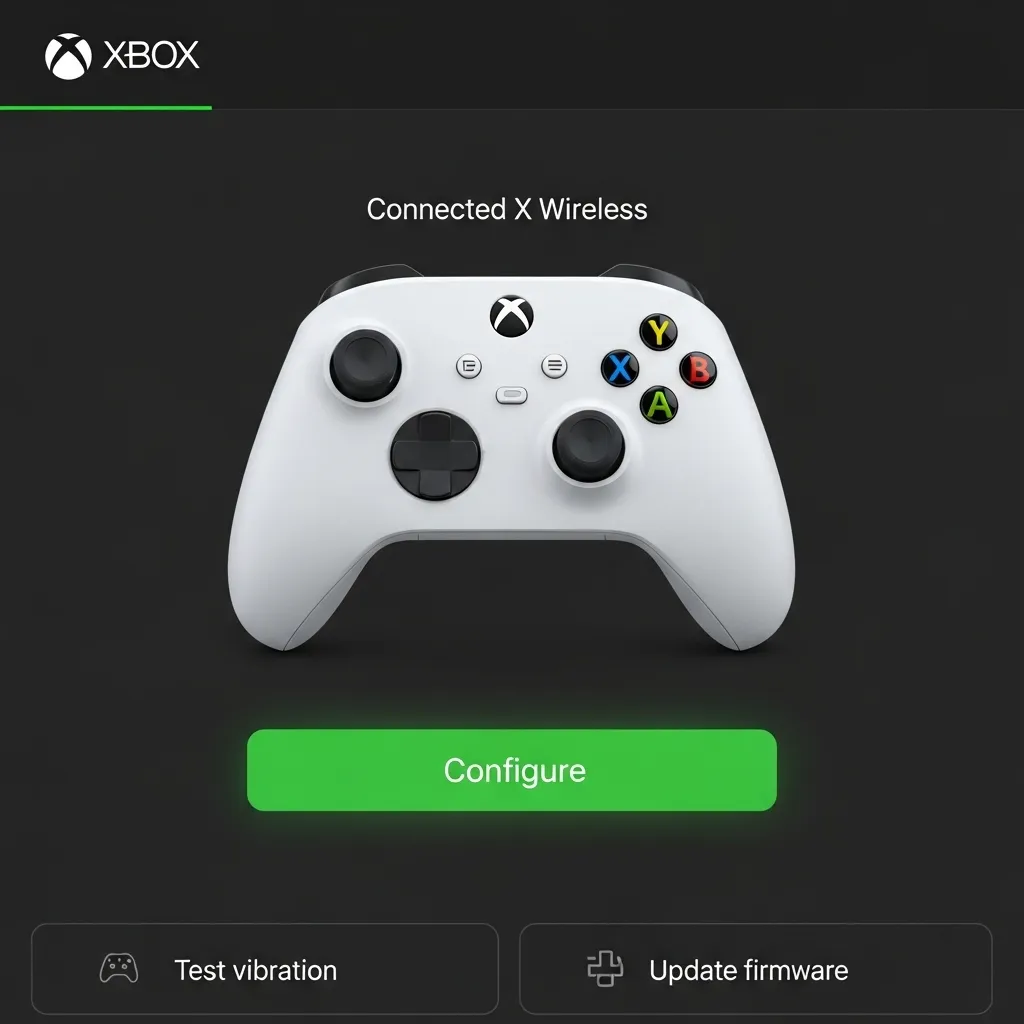
Getting your haptics under control takes just a few clicks. Follow this process to manage your global vibration settings:
- Download the App: Search for “Xbox Accessories” in the Microsoft Store and install it.
- Connect Your Controller: Use a USB-C cable for the initial setup to ensure a stable data connection.
- Enter Configuration: Launch the app and click the beaker icon or “Configure” button below your controller image.
- Create a Profile: Select “New profile” to start editing. Give it a name like “No Vib” or “Comp Play”.
- Adjust Vibration: For standard controllers, uncheck the “Turn on vibration” box to disable all motors globally.
It is important to note the difference in hardware capabilities. Standard controllers usually offer a simple On/Off toggle within the app.
However, if you own an Elite Series 2, you gain access to granular sliders. This allows you to tune the left and right haptic actuators independently.
“The Xbox Accessories app gives you more ways to play… Create controller profiles and switch between them for different games.”– Xbox Support
Managing these settings does more than just steady your aim. Reducing vibration intensity can significantly extend your gaming sessions between charges.
A bar chart comparing Xbox controller battery life, showing approximately 40 hours with vibration off versus 25 hours with heavy vibration usage.
Disabling the motors prevents unnecessary power drain. This is especially useful if your batteries are running low during a crucial match.
Here is a quick breakdown of what you can customize regarding haptics based on your specific controller model:
| Feature | Standard Series X|S | Elite Series 2 |
|---|---|---|
| Global On/Off Toggle | ✅ | ✅ |
| Main Motor Intensity Sliders | ❌ | ✅ |
| Trigger Motor Intensity Sliders | ❌ | ✅ |
| Haptic Curve Adjustments | ❌ | ✅ |
Once you have applied your new settings, you should verify they are working correctly.
You do not want to launch a ranked match only to find the rumble is still active.
Use our online Gamepad Controller Vibration Test to instantly check if your motors are disabled or performing as expected.
Fast Facts
- The Xbox Accessories App is the official tool for managing global controller firmware on Windows, allowing users to create profiles that override in-game defaults across all software.
- Customization capabilities depend on the specific controller model; standard controllers are limited to a global On/Off toggle, whereas the Elite Series 2 offers granular sliders for independent motor tuning.
- Disabling or reducing vibration intensity significantly extends battery life by minimizing power drain, potentially increasing usage time from 25 to 40 hours.
Customizing Steam Input for Game-Specific Vibration
If the global Xbox Accessories app feels too broad for your needs, Steam Input is the ultimate solution.
It allows you to define vibration intensity on a per-game basis, which is ideal for managing your library.
For example, you might want zero rumble for a competitive shooter like Apex Legends to aim better, but maximum immersion for a cinematic RPG like Cyberpunk 2077.
Steam Input handles this effortlessly.
To access these settings, you need to ensure your Xbox Series X|S controller is properly recognized by Steam’s configuration tool.
Follow these steps to get started:
- Connect your controller to your PC via USB or Bluetooth and open the Steam client.
- Click on Steam in the top-left corner, select Settings, and navigate to the Controller tab.
- Ensure the toggle for “Enable Steam Input for Xbox controllers” is switched on.
- Right-click any game in your library, select Properties, and verify that the Controller tab is set to “Use default settings” or “Enable Steam Input”.
Once enabled, you can customize the haptics while the game is running or from the library page.
This granular control is what sets PC gaming apart from console limitations.
Adjusting Vibration Intensity Sliders
To tweak the rumble, open the “Controller Layout” menu for your specific game.
You can do this by pressing the Guide button while in-game if the Steam Overlay is active.
Navigate to the “Edit Layout” section. Here you will find options to adjust the haptic feedback.
You can often lower the intensity from the default 100% down to a subtle 20% or 30%.
You can also differentiate between the “Large Motor” (heavy rumble) and the “Small Motor” (high-frequency buzz).
Reducing the large motor intensity often helps with hand fatigue during long sessions.
“Steam Input translates the game’s vibration requests into the appropriate rumble for the device… allowing the user to adjust the intensity of the haptics.”– Valve Corporation, Steamworks Documentation
After adjusting the sliders, verify the physical output.
Use our Gamepad Controller Vibration Test to confirm the motors are responding correctly to the new signal strength.
Troubleshooting Steam Rumble Issues
Sometimes Steam Input might conflict with native game settings. If vibration stops working entirely after you tweak it, check these common conflict points:
- In-Game Settings: Ensure vibration is also enabled in the game’s internal audio or controller menu. Steam cannot force rumble if the game engine has disabled it.
- Battery Level: Low battery on wireless controllers can trigger a power-saving mode that kills haptics.
- Conflicting Overlays: Other launchers like Epic Games or Xbox Game Bar might fight for control over the haptic actuators.
If you suspect a specific motor is failing rather than a software issue, you can isolate the problem.
Run a check on the individual motors using the Gamepad Controller Haptic Actuators Test to ensure hardware health.
By mastering Steam Input, you ensure that every trigger pull and collision feels exactly right for the specific genre you are playing.
This customization helps you maintain precision without sacrificing the fun factor of rumble.
Fast Facts
- Steam Input enables granular, per-game vibration customization, allowing players to tailor haptic feedback intensity for specific genres like competitive shooters or cinematic RPGs.
- Users can adjust the specific intensity of ‘Large Motor’ and ‘Small Motor’ haptics via the ‘Edit Layout’ menu to fine-tune immersion or reduce hand fatigue.
- Troubleshooting vibration issues involves verifying in-game settings, checking battery levels, and ensuring there are no conflicts with other launcher overlays.
Unlocking Granular Control for Non-Steam Platforms
While Steam Input offers a fantastic overlay for customization, playing titles through Xbox Game Pass or the Epic Games Store requires a different approach.
You need a system-level solution.
The best way to handle this is by modifying the controller’s onboard profile. This ensures your preferences stick regardless of which launcher you use to boot your game.
“You can create multiple profiles in the Xbox Accessories app and switch between them on the fly.”– Xbox Support
Using the Official Xbox Accessories App
For most users, Microsoft’s native utility is the safest bet. It writes configuration data directly to the firmware of your Series X|S controller.

Follow this process to set up a global profile for your non-Steam games:
- Download and install the Xbox Accessories app from the Microsoft Store.
- Connect your controller via a USB-C cable to ensure a stable data connection during setup.
- Open the application and click the Configure button (the beaker icon).
- Select New Profile and name it something memorable, like “Low Rumble”.
- Navigate to the vibration tab. For standard controllers, you can toggle vibration on or off here.
- Save the profile to Slot 1 to make it your active default.
Advanced Control with Third-Party Tools
If you need precise granularity, such as setting intensity to exactly 40%, the standard Xbox app has limitations. It often treats rumble as a binary choice.
To bypass this on standard gamepads, you may need software like reWASD or DS4Windows (which now supports Xbox controllers).
These tools emulate a virtual device.
By using these utilities, you can adjust the “Global Rumble Strength” slider. This intercepts the game signal and scales it down before it reaches your hands.
Verifying Your Configuration
Once you have applied a new profile or third-party tweak, you must verify that the motors are responding correctly.
In-game action is often too chaotic for testing.
We recommend using our Gamepad Controller Haptic Actuators Test. This tool allows you to trigger specific motors to ensure your intensity reduction is working.
If you set the intensity too low, the heavy weights in the motors may not spin at all.
Testing ensures you haven’t accidentally disabled the feedback loop entirely.
Reducing Intensity for Game Pass with Third-Party Tools
While the Xbox Accessories app is the official route, it often lacks the granular control PC gamers crave.
It treats vibration as a simple toggle rather than a slider.
For Game Pass titles that do not offer in-game sliders, you need third-party middleware. These tools intercept your controller input before the game sees it.
This allows you to dampen the rumble signal globally.
The most popular free option is DS4Windows. Despite the name, it fully supports Xbox Series X|S controllers.
“reWASD is a truly powerful tool… It lets you remap controller to keyboard and mouse, reassign paddles, and creates macros.”– Wes Fenlon,
PC Gamer
Using DS4Windows for Vibration Control
To use this method, you need the Ryochan7 build or a modern fork. Once installed, you can create a specific profile for your Game Pass library.
Navigate to the “Other” tab in the profile editor. Here you will find separate sliders for the heavy and light rumble motors.
Set these to your desired percentage.
This software effectively acts as a filter.
If a game requests 100% vibration, DS4Windows scales it down to your limit, such as 50%, before sending it to the pad.
Here are the key benefits of using middleware for this task:
- Granular Control: Adjust the left (heavy) and right (light) motors independently to fine-tune the feedback feel.
- Profile Switching: Create a “Silent” profile for late-night gaming and a “Rumble” profile for action games.
- Deadzone Fixes: While adjusting rumble, you can also tweak stick curves to prevent drift or improve response.
- Battery Saving: Lowering mechanical vibration intensity significantly extends your controller’s battery life.
Premium Options: reWASD
If you want an even more user-friendly interface, reWASD is the gold standard. It allows you to visualize the rumble motors and adjust them in real-time.
You can even map haptic responses to button presses. This is useful for accessibility or for adding feedback to older games that lack native rumble support.
Monitoring Input Lag
One concern with running middleware is the potential for added delay. Processing the input signal through an extra layer of software takes a few milliseconds.
For most single-player Game Pass titles, this is imperceptible. However, competitive players should verify their setup using our Gamepad Latency Test.
A bar chart comparing input latency: Native connection is fastest (4.2ms), while middleware adds roughly 1ms of delay.
Testing Your New Configuration
After applying your new settings in DS4Windows or reWASD, do not jump straight into a ranked match. You need to ensure the motors are actually dampened.
Use our online tools to verify the intensity. If you adjusted the triggers specifically, run the Gamepad Trigger Pressure Test to check the response.
If the controller still vibrates at full force, ensure that you have hidden the physical controller option in your software settings to prevent “double input” issues.
Fast Facts
- The official Xbox Accessories App provides a safe, firmware-level way to create profiles for non-Steam platforms, but it often restricts vibration settings to a simple on/off toggle.
- Third-party middleware tools like DS4Windows and reWASD are necessary for granular control, allowing users to define specific rumble percentages and independently adjust motor intensity.
- Users should verify their custom vibration settings with specific haptic testing tools to ensure the intensity isn’t set so low that the motors fail to spin.
Troubleshooting Vibration via Firmware Updates
If your controller refuses to vibrate, outdated firmware is often the culprit. Microsoft regularly patches bugs that disrupt haptic feedback on PC.
First, download the Xbox Accessories app from the Microsoft Store. Connect your controller via USB for the safest data transfer.
Wireless updates are possible, but a wired connection prevents data loss. Open the app and click the “Update required” button if it appears.
Updating not only restores vibration but can also reduce lag. You can verify this improvement with our Gamepad Latency Test tool.
Sometimes, a new update might introduce bugs. If vibration stops working after an update, you may need to revert the firmware to a previous version.
“Updating your controller’s firmware… can solve many connection and performance issues.”– Cale Hunt,
Windows Central
To revert, you can force a downgrade via a run command. Press Win + R and paste: xboxaccessories:\\firmwareupdate?legacyDowngrade=true.
This hidden rollback feature is a lifesaver for persistent glitches. Always restart your PC after changing firmware to ensure drivers reload correctly.
For more ways to get the most out of your hardware, check our guide on gamepad optimization tips.
Fast Facts
- Update your controller firmware using the Xbox Accessories app via a wired USB connection to resolve vibration issues and potential input lag.
- If an update causes new problems, you can force a firmware downgrade using a specific run command and should restart your PC afterward.
Master Your Controller Feedback
Tweaking your vibration settings is a total game-changer for both precision aiming and battery longevity.
Whether you rock a standard pad or an Elite Series 2, the Xbox Accessories App is your key to customization.
Remember, turning off rumble can save serious power. Get your settings dialed in and dominate the competition!
Frequently Asked Questions
Can I adjust vibration intensity on a standard Series X controller?
No, standard controllers only support a global On/Off toggle. Granular intensity sliders are exclusive to the Elite Series 2.
Do these settings apply to Steam games?
Yes. Changes made in the Xbox Accessories App save to the controller firmware, overriding settings in Steam and other launchers.
Why is my controller still vibrating after disabling it?
Ensure you selected the correct profile slot on your controller. Also, check for any pending firmware updates in the app.
Technical Glossary
- Xbox Accessories App
- The official software tool on Windows that serves as mission control for hardware customization and firmware adjustments.
- Firmware
- The embedded software within the controller hardware that controls its low-level functions and settings.
- Global Settings
- Configurations that persist across all software and applications, effectively overriding specific in-game defaults.
- Haptics
- The tactile feedback technology, commonly known as vibration or rumble, that provides physical sensations through the controller.
- Actuators
- The physical motors located inside the controller, such as the left and right units, responsible for generating vibration intensity.