
Love your DualSense but hate that the Create button sits uselessly on your PC? Let’s fix that!
While Windows often ignores it by default, remapping it is a breeze with the right tools.
Whether you need a dedicated screenshot key or a specific macro trigger, we have the straightforward solution you are looking for.
Ready to fully customize your gameplay experience? Let’s level up your controller knowledge and get you back in the game with a perfect setup.
TL;DR
- Use Steam Input to enable PlayStation Controller Support and assign per-game actions.
- Map the Create button to specific keyboard keys like F12 for screenshots via Steam.
- Utilize DS4Windows for system-wide remapping that works across all launchers like Epic Games.
- Configure advanced inputs like long-press or double-tap actions using DS4Windows profiles.
Remapping the Create Button via Steam Input for Gaming
Steam Input is the absolute best way to customize your DualSense controller on PC. It offers native support that translates your Sony hardware inputs into commands your computer understands.
Before we dive into the settings, it is interesting to note how popular PlayStation controllers have become on the platform. The DualSense is a major driver of this growth.
A pie chart showing controller market share on Steam: Xbox (60%), PlayStation (27%), and Others (13%).
To start remapping the Create button, you first need to ensure Steam is listening to your specific controller type.
This enables the advanced configuration menu.
Step-by-Step Configuration Guide
- Access Settings: Launch Steam and navigate to Settings in the top left corner, then select the Controller tab.
- Enable Support: Look for “PlayStation Controller Support” and toggle it to “Enabled.” If it says “Not Installed,” you will be prompted to install it.
- Open Layout: Right-click your desired game in the Library, choose Manage, and then click Controller Layout.
- Edit Inputs: Click Edit Layout. Select the “Share” or “Create” button icon on the visual map.
- Remap: Assign a keyboard key (like F12 for screenshots) or a system command to the button.
If you notice other features acting up while you are in these menus, such as the resistance in your triggers, you might need to troubleshoot further.
We have a specific guide to help you if you find your DualSense Adaptive Triggers Not Working on PC? 3 Easy Fixes.
“The Steam Controller Configurator is the most powerful piece of software for gamepads… You can remap buttons to keyboard keys, create macros, and more.”– Bo Moore, PC Gamer
Once you have mapped the button, the setting is saved per game.
This allows you to have the Create button act as a map toggle in RPGs and a scoreboard in shooters.
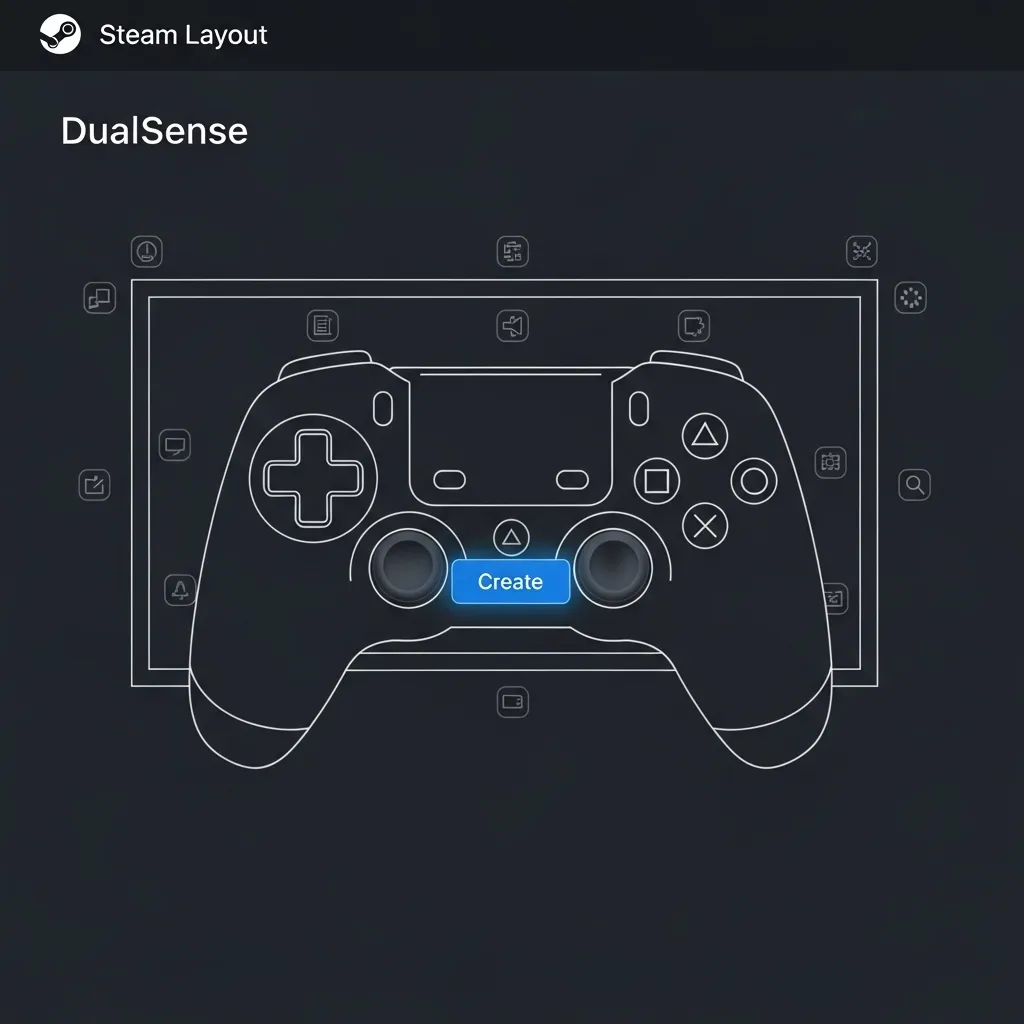
Remember that Steam Input must be enabled for that specific game for the remapping to work. If you disable Steam Input, the controller reverts to standard behavior.
If you encounter issues where the controller works here but not in other launchers, read our guide: Controller Working in Steam but Not Epic Games? Fix It!.
Fast Facts
- To begin customizing the DualSense controller, users must first enable ‘PlayStation Controller Support’ within Steam’s general Controller settings.
- The remapping process involves accessing a game’s Controller Layout via the Library, selecting the Create/Share button, and assigning it a specific keyboard key or system command.
- Button configurations are saved on a per-game basis, allowing the Create button to perform different functions, such as taking screenshots or toggling maps, depending on the title.
Assigning Share Functions in DS4Windows
DS4Windows is the most robust tool for this job. It acts as a bridge, translating your DualSense inputs into commands that Windows understands perfectly.
This software offers system-wide control. Your new mappings will work across Epic Games, GOG, and even standalone emulators without any friction.
“DS4Windows is an open-source application that allows you to trick your PC into thinking the DualSense is an Xbox controller.”– Wired Staff
Step-by-Step Remapping Guide
Ready to customize? Follow these simple steps to assign a specific function to your Create button using the DS4Windows interface.
- Open DS4Windows. Ensure your controller is listed under the “Controllers” tab and connected via USB or Bluetooth.
- Click the Edit button next to your active profile. This opens the mapping configuration screen.
- Locate the visual representation of the DualSense. Click directly on the Share (Create) button on the image.
- A binding window will appear. You can now select a keyboard key, mouse click, or Xbox button to assign.
- Choose your desired key. For example, select ‘F12’ to trigger Steam screenshots or ‘Print Screen’ for general capture.
- Click Save at the top right of the window to apply your changes immediately.
Once saved, the button will execute that command globally. It is a seamless way to integrate PC shortcuts directly into your gamepad workflow.
If you are unsure if the button is physically registering before you map it, you should test your controller inputs first.
Advanced Mapping Options
DS4Windows allows for more complex setups than just a single click. You can assign different actions based on how you interact with the button.
| Input Type | Description | Best Use Case |
|---|---|---|
| Single Click | Standard press and release | Instant actions like Screenshots (F12) |
| Long Press | Holding for a set duration | Opening overlays (Game Bar) |
| Double Click | Two quick taps in succession | Start/Stop Video Recording |
This flexibility lets you keep the Create button versatile. You can have a quick screenshot on a tap and a menu overlay on a hold.
While you are configuring your profile, you might also want to check your triggers.
Sometimes custom profiles can cause DualSense adaptive triggers to behave unexpectedly.
Fast Facts
- DS4Windows provides system-wide control that acts as a bridge for DualSense inputs, ensuring compatibility across platforms like Epic Games, GOG, and emulators.
- Users can map the Share (Create) button to specific keyboard keys or mouse actions by selecting their active profile and using the visual configuration tool.
- The software supports advanced input options, allowing different functions to be assigned to single clicks, double clicks, and long presses for increased versatility.
Master Global Desktop Control with DualSenseX (DSX)
If you need more power than Steam offers, let’s talk about DualSenseX (DSX). This dedicated software unlocks the full potential of your Sony hardware.
It allows for global remapping. This means your Create button can control Windows functions even when you are not inside a specific game.
You can set the Create button to mute your PC volume, snap a screenshot, or even act as a dedicated “push-to-talk” key for Discord.
Step-by-Step Mapping Guide
Follow these steps to turn your Create button into a desktop utility tool using DSX.
- Install DSX: Get the app from Steam or GitHub and launch it. Ensure your controller is connected via USB or Bluetooth.
- Access Controller Settings: On the main dashboard, look for the controller icon or the “Settings” tab on the left sidebar.
- Locate Button Assignments: Scroll down to the “Button Mapping” or “Customization” section. Find the “Create” (Share) button.
- Select Your Trigger: Click the dropdown menu. You can map it to a keyboard key (like F12), a mouse click, or a media key.
- Save and Apply: Ensure you save your profile. Test the button on your desktop to verify the new function works instantly.
“With DSX, you can bring your DualSense Controller to life on PC… Configure Adaptive Triggers, Haptic Feedback, and more.”– Paliverse, DSX Steam Store Description
Why Choose DSX Over Others?
DSX is built specifically for the DualSense. While other tools work, DSX integrates native features like customizable adaptive triggers.
If you are curious about how your controller’s vibration motors respond after remapping, you should run a Controller Haptic Actuators Test.
This software effectively bridges the gap between console hardware and PC versatility, which is why PlayStation controller usage on PC is rising.
A pie chart showing PC controller usage: Xbox (60%), PlayStation (27%), and Other (13%).
Once you have configured your new map, it is smart to verify the input is clean. Go to the Gamepad Controller Test to check response times.
Using a dedicated tool like DSX ensures that your remapped Create button does not conflict with other background apps, keeping your gameplay smooth.
Setting System-Wide Macros for the Create Button
The Create button often sits idle on PC. By setting system-wide macros, you can turn it into a powerful utility tool for your desktop.
You can control music, take screenshots, or launch apps. This requires software that translates controller inputs into keyboard commands.
We recommend DS4Windows for this task. It offers robust macro recording capabilities that work across your entire Windows environment.
Step-by-Step Macro Setup with DS4Windows
Follow these steps to assign a useful function to your Create button. Make sure your controller is connected before starting the software.
- Open DS4Windows and navigate to the Profiles tab in the main window.
- Select your active profile and click the Edit button on the right side.
- Locate the Create button on the controller diagram. It is labeled as ‘Share’ in the interface.
- Click the button to open the binding window. Select Record Macro from the list.
- Perform the keystrokes you want to assign, such as ‘Alt + Tab’ or ‘Win + G’. Click Save.
Once saved, this macro will trigger whenever you press the button. It works on your desktop, in your browser, and even during gameplay.
“Steam Input is an incredibly powerful tool… it allows you to rebind buttons, create macros, and even set up action layers.”– Wes Fenlon, PC Gamer
Useful Macros for Gamers
Not sure what to map? Here are some popular shortcuts that gamers use to enhance their experience without touching the keyboard.
| Macro Function | Keyboard Shortcut | Best Use Case |
|---|---|---|
| Instant Replay | Alt + F10 (ShadowPlay) | Saving the last 30 seconds of gameplay. |
| Screenshot | Win + Shift + S | Capturing a specific area of the screen. |
| Discord Mute | Ctrl + Shift + M | Quickly silencing your mic during chats. |
| Task View | Win + Tab | Switching between active windows rapidly. |
Remapping buttons adds a layer of processing. If you notice input delay after applying these settings, run a Gamepad Latency Test.
High latency can ruin the feel of competitive games. It is vital to ensure your macro software is not consuming too much CPU power.
Controller Usage Trends
Using a PlayStation controller on PC is becoming increasingly popular. This drives the need for better mapping tools like DS4Windows.
A pie chart showing controller usage on Steam: Xbox (69%), PlayStation (21%), Switch Pro (4%), and Other (6%).
Conflicts can occur if multiple programs try to read the controller at once. This often happens with launchers running simultaneously.
If your macros fail while gaming, check our guide on Controller Working in Steam but Not Epic Games.
Always close unnecessary background apps when testing new macros. This ensures that your remapped Create button triggers reliably every time.
Managing Wired and Bluetooth Connection Differences
Before attempting to remap the Create button, you must decide how you connect your DualSense to the PC. The method you choose dictates available features.
Most remapping software works best with a wired connection. A USB-C cable ensures the controller sends consistent data packets to the Windows driver.
Bluetooth is convenient for couch gaming but often restricts bandwidth. This limitation can prevent the Create button from registering as a unique input.
If you are serious about customizing your layout or competitive play, understanding the latency difference is vital. Wired connections reduce input lag.
A bar chart showing DualSense latency: Wired is 3.6ms, Native Bluetooth is 11.2ms, and Weak Signal is 18.5ms.
Why Wired is Preferred for Remapping
When you plug the DualSense in via USB, Windows identifies it specifically as a Sony interactive device. This allows deep access to the firmware.
Software like Steam Input relies on this identification. It allows you to bind the Create button to screenshots or keyboard keys without interference.
If you encounter delay while testing your inputs, you should run a Gamepad Latency Test. This confirms if your connection is stable enough for mapping.
“The DualSense is a fantastic controller… but to get the most out of it on PC, you’re going to want to use a wired connection.”– Wes Fenlon, PC Gamer
Bluetooth Limitations and Fixes
Using Bluetooth 5.1 or higher provides a decent experience, but Windows often sees the device as a “Generic Wireless Controller.”
This generic driver may merge the Create button signal with the Share button or disable it entirely. This makes remapping difficult or impossible.
For gamers prioritizing response time, we recommend reading our guide on wired vs wireless controllers to understand the trade-offs.
Here is a quick breakdown of feature availability based on your connection method:
| Feature | Wired (USB-C) | Bluetooth |
|---|---|---|
| Create Button Remapping | High Stability | Inconsistent |
| Haptic Feedback | Full Support | Basic Rumble Only |
| Adaptive Triggers | Supported | Rarely Supported |
| Audio Jack Output | Works | Disabled |
If you must use Bluetooth, ensure your PC drivers are updated. Outdated Bluetooth drivers are a common cause of remapping software failures.
In the next section, we will explore the specific third-party software tools required to force Windows to recognize that elusive Create button.
Fast Facts
- DualSenseX (DSX) enables global remapping for the DualSense controller, allowing the Create button to control desktop functions like volume, screenshots, and push-to-talk.
- For advanced utility, tools like DS4Windows allow users to record and assign system-wide macros, translating controller inputs into complex keyboard commands.
- Optimizing controller usage on PC requires saving custom profiles and verifying inputs through testing tools to ensure smooth performance without application conflicts.
Take Control of Your DualSense Experience
Remapping the Create button unlocks a new level of functionality for your PC gaming setup. It is a total game-changer.
Whether you choose Steam Input for specific titles or DS4Windows for global control, the power is in your hands.
Don’t settle for default settings. Customize your controller to fit your exact playstyle and dominate the competition.
Go ahead and tweak those inputs today. Let’s get you back in the game with a controller that works for you!
Frequently Asked Questions
Can I use the Create button for screenshots in non-Steam games?
Yes! DS4Windows allows you to map the button globally. You can assign the Print Screen key to capture moments anywhere.
Why isn’t my PC detecting the Create button press?
Check for software conflicts. If both Steam and DS4Windows are running, they might fight over the input signal.
Does remapping affect the DualSense touchpad functionality?
No, it shouldn’t. The Create button and touchpad operate separately unless you create a complex macro linking them.
Is DS4Windows safe to use for remapping?
Absolutely. It is a safe, open-source tool. Just ensure you download it from the official GitHub source.
Technical Glossary
- Steam Input
- A native support system within Steam that translates hardware inputs from controllers, such as the DualSense, into commands the computer can understand.
- DualSense
- The specific model of PlayStation controller that provides features like adaptive triggers and can be customized on PC via software like Steam Input.
- Controller Layout
- A configuration menu accessed through the Steam Library that allows users to edit inputs and map buttons to specific keys or commands.
- Adaptive Triggers
- A hardware feature of the DualSense controller that provides variable resistance in the triggers, which may sometimes require troubleshooting on PC.
- DS4Windows
- A robust software tool that acts as a bridge to translate DualSense inputs, often used as an alternative to Steam Input for assigning functions.







