
Experiencing frustrating input lag with your Wii U Pro Controller on Windows 11 via Bluetooth? You’re not alone!
This classic controller is fantastic, but wireless connections can be tricky.
Don’t worry, this guide provides a simple, direct fix to eliminate that delay and ensure your inputs are instant.
Let’s get you back in the game, completely lag-free!
TL;DR
- Input lag with the Wii U Pro Controller on Windows 11 is caused by a lack of official drivers, forcing the use of generic Bluetooth protocols or third-party software.
- Key causes for the delay include driver incompatibility, 2.4GHz wireless interference from other devices, outdated Bluetooth adapters (v4.0 or older), and Windows power management.
- Hardware significantly impacts latency; a modern Bluetooth 5.0 adapter offers much lower delay (8-12ms) than older v4.0 adapters (15ms+), while a wired adapter like Mayflash is the best option (4-8ms).
- Before applying fixes, use a gamepad latency test tool to measure your baseline input lag, which helps you verify the effectiveness of any changes you make.
Unpacking Wii U Pro Controller Input Lag on Windows 11
So, you’ve successfully paired your Wii U Pro Controller, but something feels off. Your in-game actions are delayed, making fast-paced games unplayable. This is input lag, and it’s a common hurdle when using this gamepad on Windows 11.
The core issue is that the Wii U Pro Controller was never designed for PC. It lacks official drivers, forcing Windows to use generic Bluetooth protocols or rely on third-party software. Let’s break down the most common causes of this frustrating delay.
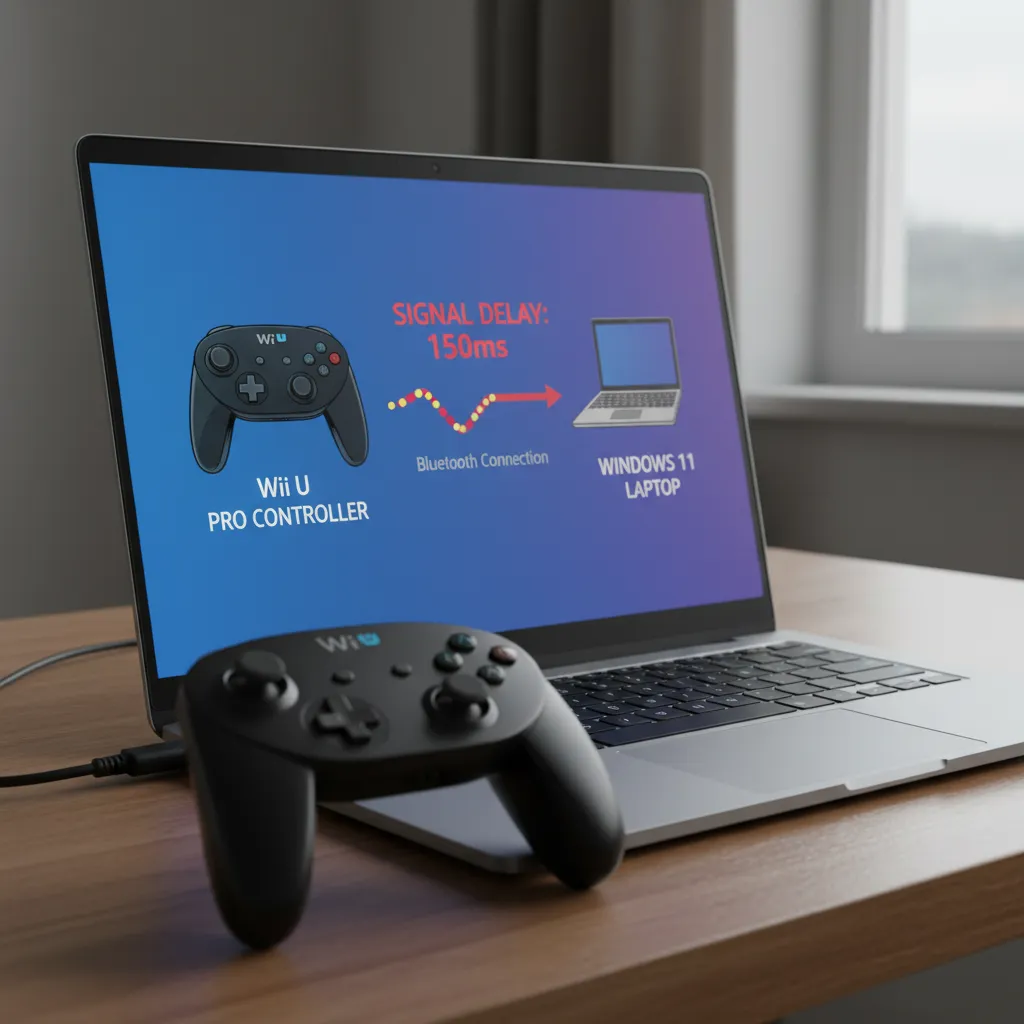
Common Causes of Wii U Pro Controller Lag
Input lag rarely stems from a single source. It’s often a combination of software conflicts, hardware limitations, and environmental factors.
Understanding these potential culprits is the first step toward a lag-free gaming experience.
| Potential Cause | Description |
|---|---|
| Driver Incompatibility | Windows 11 uses a generic driver that may not be optimized for the controller, leading to processing delays. |
| Bluetooth Interference | Your controller competes for airtime on the 2.4GHz frequency with Wi-Fi, microwaves, and other Bluetooth devices. |
| Outdated Bluetooth Adapter | Older Bluetooth dongles (version 4.0 or earlier) have higher inherent latency compared to modern standards. |
| Windows Power Management | Windows might be putting your Bluetooth adapter into a low-power state to save energy, increasing response time. |
Your PC’s Bluetooth version plays a significant role in latency. Newer standards are far more efficient, which directly impacts how quickly your controller’s inputs are registered.
Older hardware can be a major bottleneck.
A bar chart shows typical Bluetooth latency: Bluetooth 3.0 has around 150ms, Bluetooth 4.x has around 50ms, and Bluetooth 5.x has around 20ms.
Wireless interference is another major factor. The 2.4GHz band is crowded, and your controller’s signal can easily be disrupted, causing packets to be delayed or dropped.
Minimizing this interference is crucial for a stable connection.
“Wi-Fi and Bluetooth both use the 2.4 GHz ISM band… When both are enabled on a computer at the same time, their signals can interfere with each other and cause connection or performance problems with one or both.”– Intel Corporation, Wi-Fi and Bluetooth Coexistence
Before you start changing settings, it’s vital to know your starting point. Measuring the exact delay will help you see if your fixes are working.
Head over to our Gamepad Latency Test to get a precise baseline measurement.
Fast Facts
- Input lag with the Wii U Pro Controller on Windows 11 is a common issue stemming from a lack of official PC support, which forces the use of generic drivers and reliance on third-party software.
- Key causes of this delay include driver incompatibility, 2.4GHz Bluetooth interference, outdated Bluetooth adapters (v4.0 or older), and Windows power management settings; upgrading to modern Bluetooth (v5.x) and minimizing interference are crucial for reducing latency.
Quantified Latency Benchmarks: Software and Hardware Impact
To truly conquer input lag, you need to understand what you’re up against.
Let’s put some numbers on it.
Latency isn’t just one thing; it’s a result of your entire setup, from the software drivers to your PC’s Bluetooth hardware.
Different connection methods and software wrappers introduce varying delays.
Programs like WiinUPro or DS4Windows act as translators, converting your controller’s signals for Windows. This process, while essential, adds milliseconds of latency.
Your PC’s hardware is just as crucial.
An old Bluetooth 4.0 dongle will almost always be slower than a modern adapter with Bluetooth 5.0 or higher. The quality of your USB port and potential wireless interference also play significant roles.
“In our tests, we’ve found that a good Bluetooth connection adds just a couple of milliseconds of lag compared to a wired hook-up.”– Rich Leadbetter, Eurogamer/Digital Foundry
So, how does your setup stack up?
You don’t have to guess.
The best way to get a concrete number is to test it yourself. Using a dedicated tool is the quickest way to see the real-world impact of your hardware and software choices.
Head over to our Gamepad Latency Test to get an instant reading. Compare your results to these typical benchmarks to see where you stand.
- Wired Controller (Baseline): 1-4ms
- Wii U Pro + Mayflash Adapter: 4-8ms
- Wii U Pro + Quality Bluetooth 5.0 Adapter: 8-12ms
- Wii U Pro + Older Bluetooth 4.0 Adapter: 15ms+ (Often noticeable)
If your results are higher than expected, don’t worry. The following steps will help you optimize your connection and lower that number.
Understanding latency is a key topic for any competitive player, whether they’re using wired or wireless connections.
Achieving Ultra-Low Latency: Optimal Setup Guide
Reducing input lag is about optimizing the entire signal chain.
Let’s fine-tune your hardware, drivers, and Windows 11 settings for the most responsive gaming experience with your Wii U Pro Controller.
Every millisecond counts!
Hardware First: Your Bluetooth Connection
Your PC’s Bluetooth adapter is the foundation.
While motherboard-integrated Bluetooth is convenient, a dedicated USB Bluetooth 4.0 (or newer) dongle often provides a more stable, lower-latency connection specifically for peripherals.
Physical placement also matters.
Plug your adapter into a front-panel USB port to ensure a clear line of sight to your controller. Avoid plugging it in next to USB 3.0 devices, as they can cause radio frequency interference.
Software and Driver Configuration
Proper software is key to translating your controller’s inputs.
For the Wii U Pro Controller, this usually means using a wrapper like WiinUPro or relying on Steam’s robust controller support.
Follow these steps for an optimal setup.
- Install the Right Software: Download and install the latest version of your chosen driver or ensure Steam is fully updated.
- Ensure Exclusive Control: Prevent conflicts by making sure only one program is managing the controller at a time. Disable other controller mappers if you are using Steam Input.
- Adjust Polling Rate (If Possible): Some software allows you to adjust the polling rate. A higher rate (e.g., 250Hz or 500Hz) reduces latency but may require a stronger connection.
- Close Background Processes: Free up CPU resources by closing web browsers, launchers, and other non-essential apps before you start gaming.
“For Bluetooth controllers, we will poll at 250Hz by default. The user can override this to a lower value in the per-game controller settings in case of connection issues with their hardware.”– Valve, Steamworks Documentation
Windows 11 Gaming Optimizations
Windows 11 has built-in features to help.
First, ensure “Game Mode” is enabled in your Windows Settings under Gaming.
This feature prioritizes system resources for your game, which can help stabilize performance and reduce input lag.
Next, dive into the Device Manager.
Find your Bluetooth adapter, right-click it, go to Properties, and look for a “Power Management” tab.
Uncheck the box that allows the computer to turn off the device to save power.
Do this for your USB Root Hubs, too.
Verify Your Setup
After making these adjustments, it’s time to feel the difference.
A great way to confirm everything is working as it should is to run a quick diagnostic.
Use our main Gamepad Controller Test to check for smooth analog stick movement and instant button registration.
Fast Facts
- Input latency is a complex interplay of hardware (Bluetooth adapter, USB port, wireless interference) and software (drivers, controller wrappers like WiinUPro), with different components introducing varying delays.
- Latency is quantifiable, with benchmark tests showing significant differences between wired connections (1-4ms), modern Bluetooth setups (8-12ms), and older Bluetooth hardware (15ms+), making self-testing crucial for identifying bottlenecks.
- Achieving ultra-low latency requires optimizing the entire signal chain, including using dedicated modern Bluetooth adapters, ensuring optimal physical placement, configuring software for exclusive control and higher polling rates, and enabling Windows gaming optimizations like Game Mode.
Level Up Your Connection: Lag-Free Gaming Awaits!
You’ve successfully tackled one of the most common issues for retro hardware fans. The Wii U Pro Controller is a fantastic gamepad, and now it’s ready for PC!
By understanding driver issues, Bluetooth interference, and power settings, you’ve gained control. You’re now equipped to diagnose and fix input lag.
Enjoy responsive, lag-free gameplay with your favorite controller. Now get back in the game and put those skills to the test!
Frequently Asked Questions
Why is my Wii U Pro Controller lagging on Windows 11?
The main cause is the lack of official drivers. Windows uses generic protocols, which can cause delays, along with Bluetooth interference.
Will a newer Bluetooth dongle reduce input lag?
Absolutely! Upgrading to a Bluetooth 5.0 or newer adapter can significantly cut down latency and provide a much more stable connection.
Can my Wi-Fi router cause controller lag?
Yes. Both Wi-Fi and Bluetooth often use the 2.4GHz band. This can create signal interference. Try moving your router or using a 5GHz Wi-Fi band.
How do I check if Windows power saving is the problem?
Go to Device Manager, find your Bluetooth adapter’s properties, and look for a ‘Power Management’ tab. Uncheck the box that allows the PC to turn it off.
Technical Glossary
- Input Lag
- A delay between a user’s physical action on a controller and the corresponding result occurring in-game, making the experience feel unresponsive.
- Drivers
- Specialized software that enables the operating system (like Windows 11) to communicate with and properly operate a hardware device. The Wii U Pro Controller lacks official drivers for PC.
- Bluetooth Interference
- The disruption of a wireless signal caused by multiple devices competing for the same radio frequency, such as the 2.4GHz band used by both Bluetooth and Wi-Fi.
- Latency
- The measure of time delay experienced in a system. In this context, it refers to the inherent delay in transmitting input data from the controller to the PC over a Bluetooth connection.
- Bluetooth Adapter
- A hardware device (often a USB dongle) that enables a computer to connect and communicate with Bluetooth devices. Older versions can be a bottleneck, causing higher latency.







