
Table of Contents
- Diagnosing Controller Compatibility: DS4 Clones vs. DirectInput Devices
- Installing Essential Drivers: ViGEmBus, FakerInput, and .NET Runtime
- Resolving Exclusive Mode Issues and Software Conflicts
- Troubleshooting Windows Device Manager and HID Recognition
- Best Alternatives for Unsupported Controllers: Steam Input and x360ce
- Conclusion
- Frequently Asked Questions
Is DS4Windows ignoring your generic controller?
Don’t sweat it! This common issue has a simple fix.
In this guide, we’ll show you exactly how to make DS4Windows recognize your controller, so you can stop troubleshooting and start playing.
Let’s level up your setup and get you back in the game, fast!
TL;DR
- DS4Windows is designed for the DualShock 4 protocol, which is why it often fails to detect generic controllers that use the older DirectInput standard.
- Correctly identifying your gamepad as either a DS4 clone or a DirectInput device is the first step, as the solutions for each are different.
- Installing essential drivers like the ViGEmBus driver, FakerInput, and the correct .NET Runtime is crucial for making your generic controller visible to the software.
Diagnosing Controller Compatibility: DS4 Clones vs. DirectInput Devices
Understanding why your gamepad is invisible is the first step to fixing it. DS4Windows is built specifically to communicate using Sony’s DualShock 4 protocol.
If your device does not strictly follow this digital standard, the software simply ignores it. This is a common issue with third-party controllers.
Many generic controllers utilize an older communication standard called DirectInput. While excellent for retro gaming, DS4Windows does not natively speak this language.
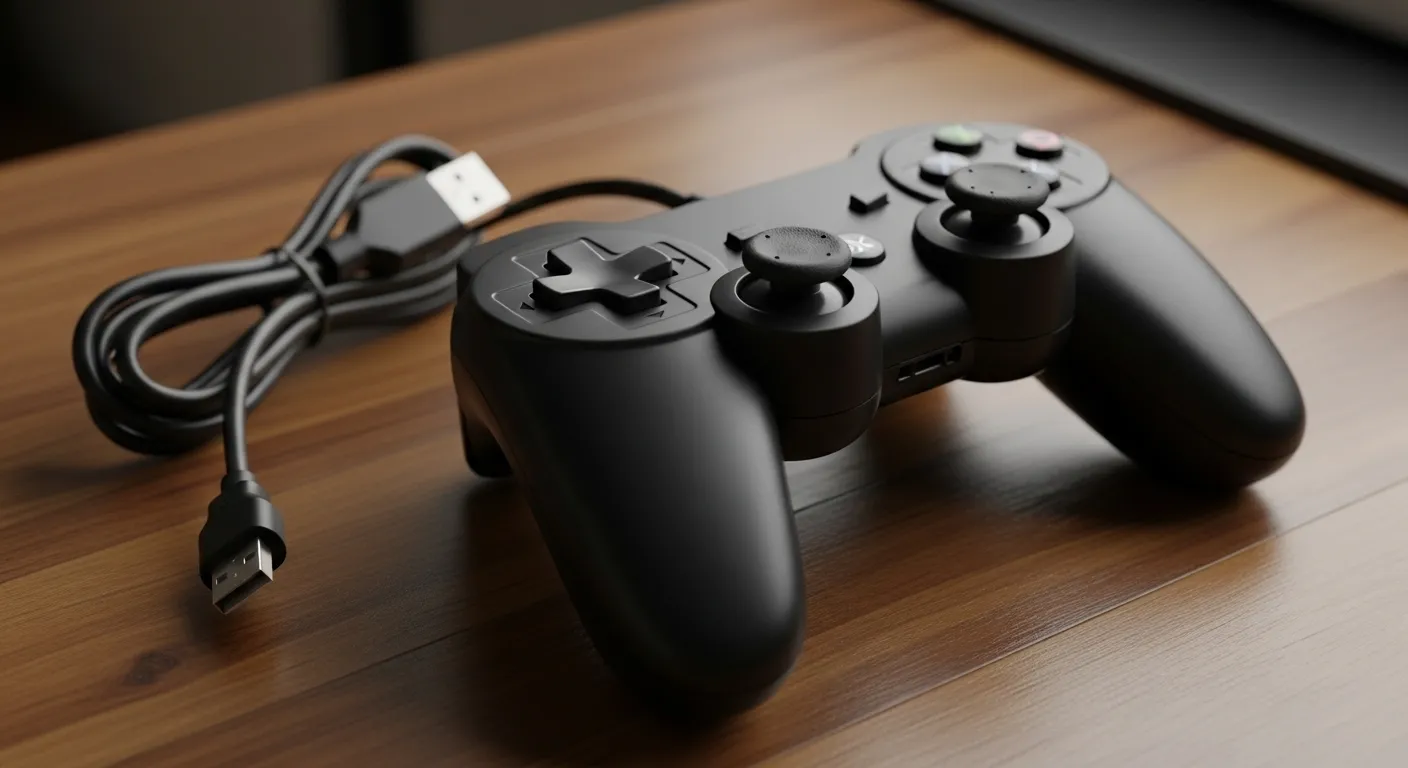
Identifying Your Controller Type
It is crucial to determine if you have a clone attempting to mimic a DS4, or a standard DirectInput device. The solutions for each are completely different.
| Feature | Official DS4 | Generic Clone | DirectInput Pad |
|---|---|---|---|
| DS4Win Detection | ✅ Native | ❌ Inconsistent | ❌ Not Supported |
| Driver Type | HID Compliant | Custom/Variable | Legacy HID |
| Vibration | ✅ Supported | ❌ Often Weak | ❌ No Feedback |
Cheap clones often suffer from outdated internal software that blocks proper communication.
You may need to update the firmware on generic Bluetooth gamepads before they will pair.
“The vast majority of generic PC controllers default to DirectInput mode for maximum compatibility, which unfortunately renders them invisible to modern XInput-based wrappers.”– Wes Fenlon, PC Gamer Hardware Lead
The Market Reality
You are not alone in this struggle. The PC gaming landscape is fragmented, with millions of users trying to make non-standard hardware work.
A pie chart showing PC controller usage: XInput (60%), PlayStation (27%), and DirectInput/Generic (13%).
If you suspect your controller is functional but simply not connecting to the app, you should test its raw output immediately.
Run a quick Gamepad Drift Test in your browser. If our tool sees the inputs but DS4Windows does not, you have a driver mismatch.
This confirms the hardware is working physically. We can now focus on forcing Windows to recognize the device correctly in the next steps.
Fast Facts
- DS4Windows relies strictly on the DualShock 4 protocol, causing compatibility issues with generic DirectInput controllers and imperfect clones that do not follow the standard.
- Fixing detection issues requires distinguishing between a DS4 clone and a standard DirectInput device, as the troubleshooting steps differ for each.
- Users should utilize browser-based input tests to verify the controller works physically, confirming that the problem lies with driver or protocol mismatches rather than hardware failure.
Installing Essential Drivers: ViGEmBus, FakerInput, and .NET Runtime
If your generic controller remains invisible to DS4Windows, missing drivers are often the root cause. These system files act as a bridge for your hardware.
Without the correct drivers, Windows cannot translate your generic input into signals that games understand. We need to install three key components.
The Critical Driver Trinity
The first requirement is the .NET Desktop Runtime. This framework powers the application itself. You must install the specific version required by your build.
Next is the ViGEmBus driver. This tool creates the virtual Xbox or DualShock controller. It is the absolute heart of the operation for generic gamepads.
Finally, we have FakerInput. This driver handles keyboard and mouse emulation mapping. It is vital if you plan to bind specific keys to controller buttons.
“DS4Windows is a portable program that allows you to get the best experience while using a DualShock 4 on your PC. By emulating an Xbox 360 controller, many more games are accessible.”– TechRadar, How to use the PS4 DualShock 4 controller on a PC
Driver Functionality Breakdown
Understanding what each component does helps you troubleshoot later. Use this quick reference table to prioritize your installation steps effectively.
| Driver / Component | Primary Function | Installation Priority |
|---|---|---|
| .NET Desktop Runtime | Runs the DS4Windows application | Critical |
| ViGEmBus Driver | Emulates virtual Xbox/DS4 gamepad | Critical |
| FakerInput Driver | Enables keyboard & mouse mapping | Optional (Recommended) |
| HidHide Driver | Hides physical controller (prevents double input) | Recommended |
Step-by-Step Installation Guide
The easiest way to install these is through the DS4Windows setup helper. This window usually appears automatically the first time you launch the software.
- Open DS4Windows. If the setup window does not appear, go to Settings and click Controller/Driver Setup.
- Click the button labeled Install ViGEmBus Driver. Follow the on-screen prompts to complete the process.
- If you are on a 64-bit system, ensure you install the x64 .NET Runtime when prompted. This is necessary for modern versions.
- Select Install FakerInput if you intend to map keyboard keys to your gamepad buttons for games with no controller support.
- Restart your PC. This step is mandatory to ensure the drivers hook into the Windows kernel correctly.
After a restart, your generic gamepad should communicate with the software. If issues persist, check if your device needs a firmware refresh using our guide on How to Update Firmware on Generic Bluetooth Gamepads.
Once your controller is detected, you can focus on performance.
For competitive gaming, consider checking our Controller Polling Rate Overclocking Guide to minimize input lag.
Fast Facts
- To ensure generic controllers function correctly with DS4Windows, users must install the .NET Desktop Runtime to run the app, the ViGEmBus driver for virtual controller emulation, and the FakerInput driver for keyboard and mouse mapping.
- The most effective way to install these components is via the DS4Windows setup helper found in the settings menu, followed by a mandatory PC restart to finalize the driver integration.
Resolving Exclusive Mode Issues and Software Conflicts
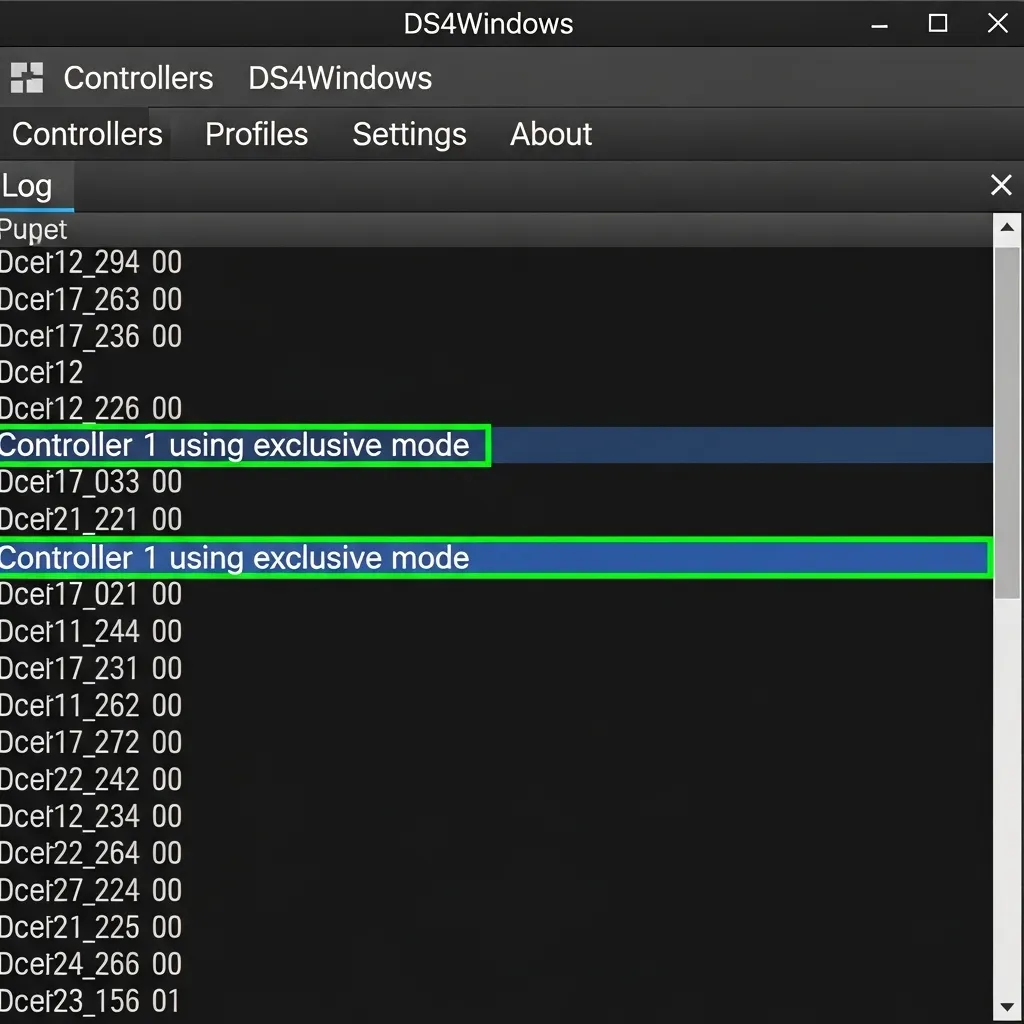
One of the most frustrating barriers to getting a generic controller working is the dreaded “Exclusive Mode” error. This usually appears in the log.
This error occurs when Windows or another application seizes control of your gamepad before DS4Windows can access it. It prevents proper emulation.
“HidHide is an input filter driver that can hide Gamepads/Joysticks from the system to prevent double-input issues in games.”– ViGEm Team, HidHide Official Documentation
Identifying the Software Culprits
Background applications are frequently the cause of these conflicts. Launchers like Steam, Epic Games, or Uplay often try to map the device first.
Steam is particularly aggressive with its input wrappers. If you are struggling with launchers fighting for control, check our guide on fixing controller conflicts between Steam and Epic Games.
Nvidia GeForce Experience and the Windows Game Bar can also hijack the signal. Temporarily disabling their overlays can often resolve the detection deadlock.
Step-by-Step Exclusive Mode Fix
If simply closing other apps does not work, you need to force Windows to release the grip on your generic controller. Follow this sequence exactly.
- Close DS4Windows completely: Ensure it is not running in the system tray.
- Disconnect the Controller: Unplug the USB or disconnect via Bluetooth settings.
- Open DS4Windows as Admin: Right-click the executable and select “Run as Administrator.”
- Connect the Controller: Plug it back in while the software is open. The log should now show successful connection.
Using HidHide for Permanent Results
For a permanent solution, modern setups use a utility called HidHide.
This tool acts as a gatekeeper, hiding the physical device from everything except DS4Windows.
By cloaking the physical controller, games will only see the emulated XInput device. This eliminates the double-input glitch where one button press registers twice.
Once you have established a stable connection without conflicts, it is smart to verify that the signal is clean. You can run a gamepad latency test to ensure the software overhead isn’t causing input lag.
Fast Facts
- Exclusive Mode errors occur when background applications like Steam or Windows Game Bar seize control of the gamepad before DS4Windows can access it.
- A manual fix involves a specific sequence: completely closing DS4Windows, disconnecting the controller, running the software as Administrator, and then reconnecting the device.
- For a permanent solution, users can employ the HidHide utility to cloak the physical controller from the system, effectively preventing double-input glitches.
Troubleshooting Windows Device Manager and HID Recognition
If DS4Windows cannot see your controller, we must first verify that Windows itself detects the hardware. This is the foundation of the connection.
Sometimes, the operating system disables the device to save power, or a driver conflict blocks the signal. Let’s dig into the Device Manager.
Fast Facts
- Verify that Windows detects the controller hardware via Device Manager before troubleshooting DS4Windows.
- Check for driver conflicts or power-saving settings that may cause the operating system to disable the device.
Checking Human Interface Devices (HID)
Your generic controller usually appears as a “HID-compliant game controller” rather than by its specific brand name. Follow these steps to locate it.
- Press the Windows Key + X and select Device Manager from the menu.
- Expand the Human Interface Devices section.
- Look for any entry labeled HID-compliant game controller.
- If you see a generic icon with a down arrow, the device is disabled. Right-click it and select Enable device.
If you see a yellow triangle with an exclamation mark, you have a driver error. Right-click the device and choose Uninstall device.
Once uninstalled, unplug your controller and restart your PC. Plug the controller back in to force Windows to reinstall the clean driver.
“If you see a yellow warning icon next to a device, it means Windows has identified a problem with it. Right-click the device… and select Properties to view the error code.”– Microsoft Support, Update drivers in Windows
Fast Facts
- Locate generic game controllers in Windows Device Manager under the “Human Interface Devices” section, where they typically appear as “HID-compliant game controller.”
- Troubleshoot issues by enabling the device if it is disabled or by uninstalling the device and restarting the PC to reinstall drivers if a yellow warning icon appears.
The HidHide Conflict
Many DS4Windows users install a tool called HidHide to prevent “double input” in games. This tool hides the physical controller from the system.
If configured incorrectly, HidHide can hide your controller from DS4Windows too. Open the HidHide Configuration Client and check your settings.
Ensure that DS4Windows is on the “Applications” whitelist. If it is not listed, the software cannot see the physical gamepad to convert its signals.
You can verify if the raw signal is reaching your browser by using our online Gamepad Controller Test.
If the browser sees inputs but DS4Windows does not, the issue is likely strictly within the DS4Windows profile or exclusive mode settings.
However, if the browser sees nothing, you might be dealing with a hardware fault.
In that case, check if the DualShock 4 is connected but not working properly at a physical level.
Fast Facts
- HidHide is a tool used to prevent double inputs, but it must be configured to whitelist DS4Windows so it does not hide the controller from the software itself.
- You can diagnose connection issues by using an online gamepad tester; if the browser detects inputs but DS4Windows does not, the problem lies within software settings rather than being a hardware fault.
Best Alternatives for Unsupported Controllers: Steam Input and x360ce
If DS4Windows refuses to cooperate with your generic controller, do not panic. You have other powerful options that can bridge the gap.
The most reliable alternative for modern gaming is Steam Input. This built-in tool acts as a universal translator for almost any gamepad.
Steam Input wraps your controller’s signals and converts them into XInput commands. This is the language most PC games understand natively.
To use it, simply launch Steam and head to Settings. Under the Controller tab, enable “Generic Gamepad Configuration” to start the detection process.
“Steam Input allows you to use any controller with any game… It translates the input from your controller into something the game understands.”– Valve, Steamworks Documentation
This method works incredibly well for most titles.
It is even useful if you find your controller working in Steam but not Epic Games by adding non-Steam games to your library.
Fast Facts
- Steam Input serves as a robust alternative to DS4Windows for generic controllers by translating their signals into XInput commands, which most PC games natively understand.
- Users can activate this feature via Steam’s Controller settings and use it for non-Steam titles (like those on Epic Games) by adding them to their Steam library.
Using x360ce for System-Wide Support
For games running outside of Steam, x360ce (Xbox 360 Controller Emulator) is the classic solution. It mimics a genuine Xbox 360 controller.
This software tricks your PC into thinking a supported device is plugged in. It works by placing a DLL file into the game’s installation folder.
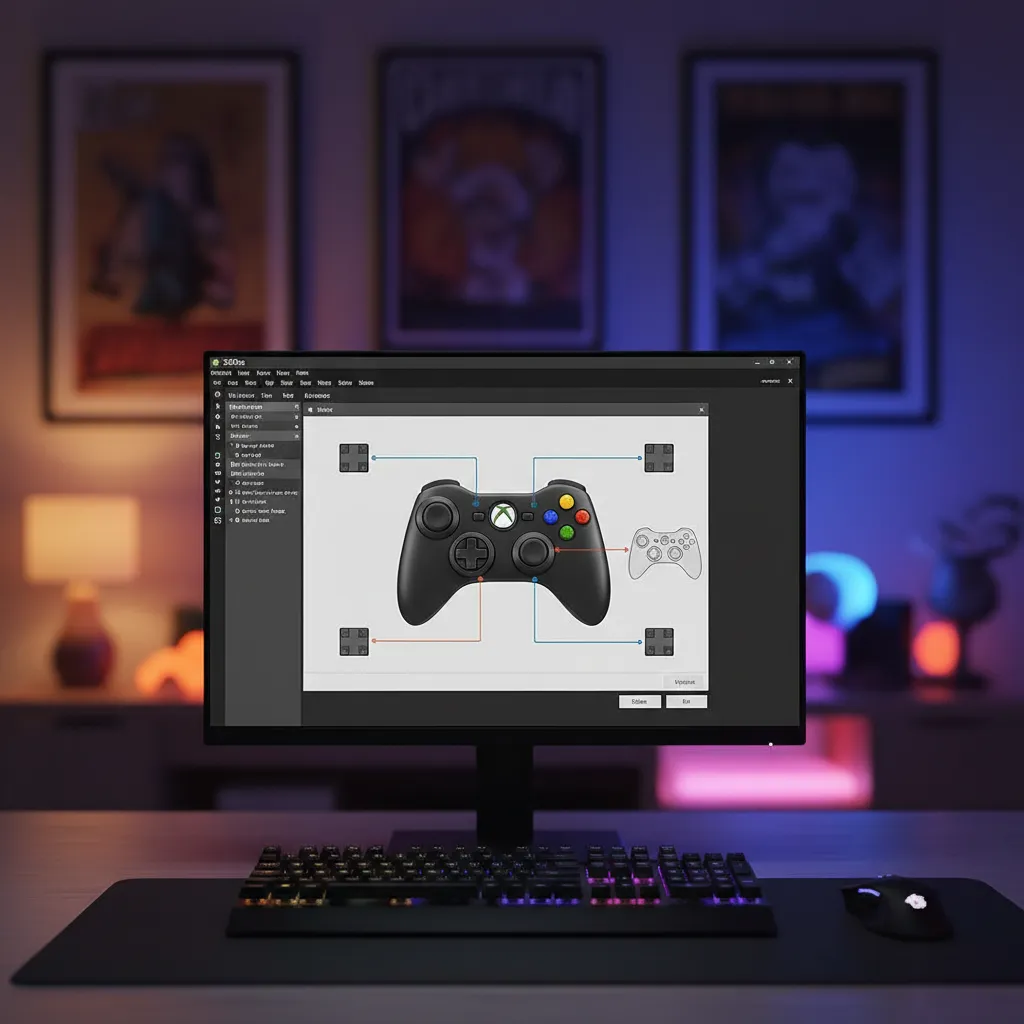
Setup is straightforward but requires attention to detail. You must map your buttons correctly within the software to prevent input errors.
Once mapped, your generic gamepad should behave exactly like an Xbox controller. This eliminates the “unsupported device” error in older games.
After setting up x360ce, it is wise to verify your inputs. You can run a Gamepad Latency Test to ensure the emulation isn’t causing lag.
A bar chart showing compatibility rates: Steam Input (95%), x360ce (85%), and Native DirectInput (40%).
Both methods solve the detection issue without needing DS4Windows. Choose Steam Input for ease of use or x360ce for maximum compatibility.
Fast Facts
- x360ce emulates a genuine Xbox 360 controller to enable support for generic gamepads in games running outside of Steam.
- The setup requires placing a DLL file into the game’s installation folder and carefully mapping buttons to ensure correct input.
- It offers high compatibility and serves as an effective alternative to Steam Input for fixing detection issues in older games.
Ready to Get Back in the Game?
Getting a generic controller to talk to DS4Windows can be tricky, but you now have the right tools.
Remember to verify your ViGEmBus drivers are installed. They are the essential bridge your PC needs.
If issues persist, try a different USB cable or port. Simple hardware swaps often solve complex software bugs.
You have leveled up your controller knowledge. Now, launch your game and enjoy the victory!
Frequently Asked Questions
Why isn’t DS4Windows detecting my generic controller?
The most common cause is missing the ViGEmBus driver. Without it, the software cannot talk to your hardware.
Can I use a DirectInput controller with DS4Windows?
Not natively. DS4Windows requires the controller to mimic Sony’s protocol. You may need x360ce instead.
What is the double input issue?
This happens when a game detects both your physical gamepad and the emulated one. Use HidHide to fix it.
Is my USB cable the problem?
It is possible. Many cables are for charging only. Ensure you are using a high-speed data sync cable.
Technical Glossary
- DualShock 4 protocol
- A specific digital communication standard created by Sony for its DualShock 4 controllers. Software like DS4Windows is built specifically to use this protocol.
- DirectInput
- An older communication standard commonly used by generic or retro PC controllers, which is not natively supported by modern applications like DS4Windows that often rely on newer standards.
- Firmware
- Internal software that is embedded within a hardware device, like a controller. Outdated firmware can block proper communication and may require updates.
- Driver Mismatch
- A compatibility issue where a hardware device is physically working, but the software on the computer (the driver) is incorrect or incompatible, preventing an application from recognizing the device’s inputs.
- XInput
- A modern communication standard for PC controllers. The text mentions it as the basis for modern wrappers, contrasting it with the older DirectInput standard.







