
Table of Contents
Sticky buttons slowing you down? Don’t let a gummy A-button or a stubborn trigger ruin your session!
Before you reach for a screwdriver, try these simple, no-disassembly-required fixes.
We’ll show you how to safely clean your controller and restore that crisp, responsive feel.
Let’s get you back in the game with buttons that feel brand new!
TL;DR
- Use a cotton swab lightly dampened with 70-90% isopropyl alcohol to clean around the base of each sticky button.
- Always power off, unplug, and remove batteries from your controller before cleaning to prevent damage.
- This simple, non-disassembly cleaning method is effective for common controllers like Xbox, PlayStation, and Nintendo Switch.
- Press the button repeatedly after applying alcohol to help the solution work into the mechanism and dislodge residue.
Essential Tools, Safety, and Preparation
Before we dive into cleaning, let’s get your gear ready. Proper preparation is key to a safe and effective cleaning session.
Rushing in can do more harm than good, so let’s set ourselves up for success!
What You’ll Need
You probably have most of these items around the house. Having everything within reach makes the process much smoother. Here’s your cleaning toolkit:
- Isopropyl Alcohol (70-90%): This is the most important cleaning agent. It evaporates quickly and is safe for electronics when used correctly.
- Cotton Swabs: Perfect for getting into the small gaps around your buttons.
- Microfiber Cloth: A soft, lint-free cloth is ideal for wiping down the controller’s body without leaving scratches or fibers behind.
- Can of Compressed Air: Great for blasting out loose dust and debris from crevices before you start with any liquids.
- Toothpick or Plastic Pry Tool: An optional tool for carefully scraping out stubborn gunk from seams. Use with extreme caution to avoid scratches.

Safety First: Power Down and Disconnect
This step is non-negotiable.
Always completely power off and unplug your controller from your PC or console.
If it has removable batteries, take them out to be extra safe. This prevents accidental button presses and protects the electronics.
Work in a well-ventilated area, especially when using isopropyl alcohol.
Also, remember to never pour or spray any liquid directly onto the gamepad.
Always apply the alcohol to your cotton swab or cloth first.
“For disinfecting, you can use a soft cloth dampened with a 70% or less isopropyl alcohol (IPA) solution.”– Microsoft Support, Clean and care for your Xbox console and accessories
Final Prep and Button Check
Before you clean, do one final check to confirm which buttons are sticking.
Connect your controller and run a quick test using our Gamepad Controller Test.
This gives you a clear before-and-after comparison of your button response.
Sticky buttons are a common complaint among gamers, but they aren’t the only issue. Gunk and grime can also contribute to bigger problems over time.
A 2022 survey highlighted just how common different controller faults are.
A bar chart showing common faults in Nintendo Switch controllers, with Stick Drift at 21% and Unresponsive Buttons at 6%.
While stick drift is often a mechanical issue, keeping your controller clean can help prevent debris from worsening the problem.
Understanding the difference between Hall Effect vs potentiometer joysticks can also shed light on why some controllers are more prone to drift.
Fast Facts
- Gather essential tools like isopropyl alcohol, cotton swabs, a microfiber cloth, and compressed air before starting to ensure a smooth and effective cleaning process.
- Prioritize safety by always powering off and disconnecting your controller, removing batteries, working in a well-ventilated area, and applying cleaning liquids only to cloths or swabs, never directly to the controller.
- Conduct a final button check before cleaning to identify specific sticky buttons, which helps in targeted cleaning and provides a clear before-and-after comparison of button response.
Targeted Non-Disassembly Cleaning for Popular Controllers
While the basic cleaning method is universal, its application can vary. Different controllers have unique shapes, seams, and materials.
Let’s level up your cleaning game with specific tactics for the most popular joypads.
Xbox Wireless & Elite Controllers
Xbox controllers have many small crevices where grime loves to hide.
Pay close attention to the seam around the face buttons (A, B, X, Y) and the directional pad. The small Share, Menu, and View buttons are also key spots.
Use a cotton swab lightly dampened with isopropyl alcohol. Carefully trace the outline of each button.
Press the button repeatedly to help the alcohol work its way into the mechanism and dislodge any sticky residue. Be gentle around the glowing Xbox button.
PlayStation DualSense & DualShock 4
The large touchpad on PlayStation controllers is a prime target for fingerprints and dirt. The seams around the touchpad and the space between the L1/R1 and L2/R2 triggers can also trap gunk, causing them to feel mushy.
Clean the touchpad with a microfiber cloth.
For the buttons, use the alcohol-and-swab method.
If you’re dealing with persistently DualShock 4 buttons that are sticking, this method is often the first and best solution before considering repairs.
Nintendo Switch Joy-Cons & Pro Controller
Joy-Cons are small, so precision is key. The tiny crevices around the analog sticks and the small +, -, Home, and Capture buttons are common problem areas.
The Pro Controller’s larger build is more forgiving but requires the same attention to detail.
When cleaning any Nintendo hardware, it is wise to consider the manufacturer’s official advice, which often provides the most cautious approach to protect its materials.
“Do not use thinners, benzine, alcohol, or other chemical agents as this may result in discoloration or deformation.”– Nintendo Support
While many users have success with high-concentration isopropyl alcohol, Nintendo’s official stance is to use only a cloth dampened with water.
If you choose to use alcohol, test it on a small, inconspicuous area first and use it sparingly.
| Controller Type | Primary Grime Zones | Key Precaution |
|---|---|---|
| Xbox Controller | Around face buttons (A,B,X,Y), D-Pad, and textured grips. | Be gentle with the smaller Menu, View, and Share buttons. |
| PlayStation Controller | Touchpad surface and seams, gaps between shoulder buttons. | Avoid letting liquid seep into the touchpad edges or speaker holes. |
| Nintendo Joy-Con | Base of analog sticks, small +, -, Home, and Capture buttons. | Use minimal liquid due to their compact and complex electronics. |
After cleaning, let your controller air dry completely for at least an hour. Then, plug it in and run a full check-up using a Gamepad Controller Test to ensure every button is responsive and back in the game.
PS5 DualSense & Xbox Series X|S: Precision Cleaning
Modern controllers like the PS5 DualSense and Xbox Series X|S have intricate designs.
Their textured grips and tight button seams can trap grime.
Let’s tackle them with a precision approach to get them feeling new again.
What You’ll Need for the Job
Gather these simple tools before you begin. Having everything ready makes the process quick and easy, getting you back in the game faster.
- A soft, lint-free microfiber cloth
- Cotton swabs or foam-tipped swabs
- A small amount of 70% isopropyl alcohol
- A wooden or plastic toothpick for stubborn grime
- A can of compressed air (optional but helpful)
Cleaning Your PS5 DualSense Controller
The DualSense’s white shell shows dirt easily. Its unique haptics and adaptive triggers deserve careful maintenance. Follow these steps for a thorough clean.
- Power down your PS5 and disconnect the controller. Safety first!
- Lightly dampen a cotton swab with isopropyl alcohol. Never apply liquid directly to the controller.
- Gently trace the swab around the edges of each button (Cross, Circle, Square, Triangle), the D-pad, and the touchpad.
- Press each button down and clean the newly exposed sides of the button housing. This is where gunk loves to hide.
- Use a dry part of the microfiber cloth to wipe away any excess moisture immediately.
“For the best results, get a little 70% isopropyl alcohol and apply it to a Q-tip or a microfiber cloth. You want to use the absolute minimum amount of liquid necessary…”– Mike Epstein,
CNET
Cleaning Your Xbox Series X|S Controller
The Xbox controller’s textured triggers and hybrid D-pad can be tricky spots. A targeted cleaning will restore their responsiveness and feel.
- Turn off the controller and remove the batteries to prevent any accidental inputs or short circuits.
- Apply a minimal amount of isopropyl alcohol to a cotton swab. Squeeze out any excess.
- Carefully work the swab into the crevices around the face buttons (A, B, X, Y) and the hybrid D-pad.
- For the analog sticks, gently push them to one side and clean the base of the ball joint. This helps prevent future issues and is crucial for controllers with potentiometer-based joysticks.
- Use a dry microfiber cloth to clean the main body and textured grips.
Final Checks and Testing
After your controller is dry, it’s time for a final check. Reconnect it and make sure every button press feels crisp and responsive. No more sticking!
To be absolutely sure everything is perfect, run a quick diagnostic. Use our Gamepad Drift Test to confirm the analog sticks are centered and responding correctly after being cleaned.
This ensures you are ready for your next gaming session.
Nintendo Switch Pro Controller: Addressing Common Sticky Points
The Nintendo Switch Pro Controller is a fan favorite for its comfort and durability.
But even this trusty joypad isn’t immune to sticky buttons after long gaming sessions.
Spills or grime can make the A, B, X, Y, and shoulder buttons feel sluggish.
Let’s get your Pro Controller feeling crisp and responsive again without reaching for a single screwdriver.
This method is safe, easy, and highly effective for surface-level gunk.
What You’ll Need for the Job
Gathering a few simple household items is all it takes to get started.
You probably have most of these on hand already. Having everything ready makes the process smooth and quick.
- Isopropyl alcohol (70% or higher)
- Cotton swabs or Q-tips
- A soft, lint-free microfiber cloth
- A toothpick or plastic spudger (optional, for stubborn grime)
Step-by-Step Cleaning Guide
With your supplies ready, it’s time to tackle that stickiness.
Follow these steps carefully to clean around the buttons without letting liquid seep inside the controller.
- Power Down: First, ensure your Pro Controller is completely turned off and disconnected from any power source to prevent accidental inputs or damage.
- Apply Alcohol: Lightly dampen a cotton swab with isopropyl alcohol. It should be moist, not dripping wet. Excess liquid is the enemy here.
- Clean the Gaps: Carefully work the damp swab around the edges of each sticky button. Press the button down and clean the gap that appears. Rotate the swab as you go.
- Wipe Away Residue: Use the dry end of the swab or a clean one to absorb any excess alcohol. Wipe the button surface with your microfiber cloth.
- Let It Dry: Allow the controller to air dry completely for at least 10-15 minutes before you power it back on and test your work.
“For cleaning electronics, you want to be sure to use a high-concentration isopropyl alcohol, because it is non-conductive and evaporates quickly, leaving no residue behind.”– Whitson Gordon,
iFixit
Don’t Forget the Analog Sticks
The base of the analog sticks is another common spot for dust and grime to build up. This can cause a grinding feeling or even contribute to erratic movement over time.
Use the same dampened cotton swab method to gently clean around the base of each joystick. Move the stick to its outer edges to open up the gap and clear out any debris.
Once clean, you can check for any lingering issues using our Gamepad Drift Test to ensure perfect calibration.
Fast Facts
- Effective non-disassembly cleaning for most popular controllers (Xbox, PlayStation) involves 70% isopropyl alcohol on cotton swabs for intricate areas and a microfiber cloth for surfaces, targeting common grime zones like button seams and textured grips.
- Nintendo officially advises against using alcohol on their hardware, recommending only water-dampened cloths; users who opt for alcohol should proceed with extreme caution, test first, and use it sparingly.
- Always ensure controllers are completely air-dried for at least an hour after cleaning and then tested to confirm full functionality.
Advanced Troubleshooting & Long-Term Prevention
Sometimes, a simple surface clean isn’t enough to beat stubborn stickiness.
If your buttons still feel sluggish, it’s time for some advanced tactics and a solid prevention plan.
When Buttons Remain Stubborn
For deeply embedded grime, a slightly more targeted approach is needed.
You can use a wooden or plastic toothpick to gently trace the seam around the sticky button. This can dislodge hardened residue without scratching your controller’s shell.
After loosening the debris, use a can of compressed air.
Hold it upright and use short bursts from a safe distance to blow away the particles you scraped loose. Be gentle and work your way around the button’s entire circumference for the best results.
If you’re dealing with a particularly unresponsive button on a specific controller, like a PS4 gamepad, you might find more targeted solutions helpful. Check out our guide if your DualShock 4 buttons are sticking for model-specific tips.
Once you’ve finished, it’s essential to check your work.
For shoulder buttons and triggers, our Gamepad Trigger Pressure Test is perfect for ensuring they register input smoothly and consistently.
Long-Term Prevention Strategies
The best way to fix sticky buttons is to prevent them from ever happening.
Integrating a few simple habits into your gaming routine will keep your controller in prime condition.
Level up your controller care with these key practices.
- Wash Your Hands: Oils and residue from your hands are the primary cause of grime buildup. A quick wash before a long gaming session makes a huge difference.
- Designated Snack Zone: Keep food and drinks away from your gaming area. Spills are a controller’s worst enemy, often causing immediate and lasting damage.
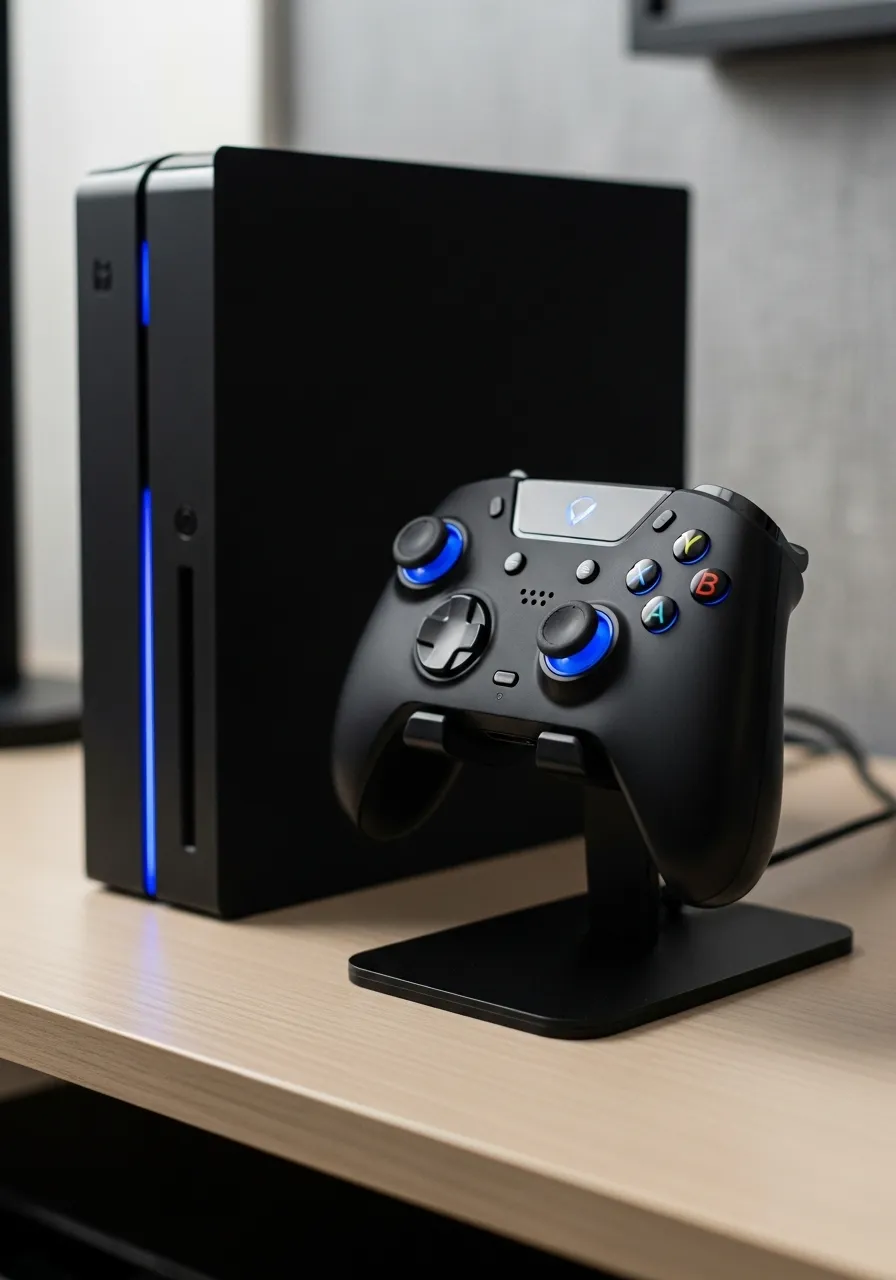
- Proper Storage: When not in use, store your controller in a clean, dry place. A stand, drawer, or case protects it from dust and accidental spills.
- Regular Wipe-Downs: Get into the habit of wiping your controller down with a dry microfiber cloth once a week. This prevents buildup before it becomes a problem.
“Spilling a drink on a controller… is one of the quickest ways to ruin it. If you absolutely, positively must drink something while you game, keep it in a sturdy, sealed container, and place it somewhere your flailing arms are unlikely to reach.”– Marshall Honorof,
Tom’s Guide
By adopting these habits, you not only prevent sticky buttons but also extend the overall lifespan of your joypad.
For more ways to care for your gear, explore our general gamepad controllers tips and tricks guide.
Fast Facts
- For stubborn sticky buttons, use a toothpick to dislodge grime and compressed air to clean, then test functionality.
- Prevent sticky buttons by washing hands before gaming, keeping food and drinks away, and storing controllers properly.
- Regularly wipe down controllers with a microfiber cloth to prevent grime buildup and extend their lifespan.
Conclusion
You’ve successfully banished the gunk without any risky disassembly! Now you know how to tackle sticky buttons like a pro.
Remember, regular maintenance is the ultimate strategy to prevent future stickiness. A quick wipe-down can save you a lot of hassle.
With a responsive, clean controller in hand, you’re ready to dominate the game. Let’s go!
Frequently Asked Questions
What if the buttons are still sticky after cleaning?
Give it one more careful pass with a fresh cotton swab. If the issue persists, the problem may be under the button and require a deeper clean.
How often should I clean my controller?
A deep clean like this is great every few months. For prevention, a quick wipe with a microfiber cloth after intense gaming sessions works wonders.
Can I use something other than isopropyl alcohol?
It’s highly discouraged. Water can short electronics and other cleaners may damage the plastic. Stick with 70-90% isopropyl alcohol for safety.
Will this method also fix analog stick drift?
It can help if the drift is caused by dust or debris around the base of the stick. However, true stick drift is usually an internal sensor issue.
Technical Glossary
- Isopropyl Alcohol
- A chemical compound, typically used in a 70-90% solution, that serves as a primary cleaning agent for electronics because it evaporates quickly and is generally safe for components.
- Microfiber Cloth
- A soft, lint-free cloth specifically designed for cleaning sensitive surfaces, like a controller’s body, without leaving scratches or fibers behind.
- Compressed Air
- A gas packaged in a can under pressure, used to forcefully remove loose dust and debris from small crevices and hard-to-reach areas of electronic devices before liquid cleaning.
- Stick Drift
- A common mechanical issue in game controllers where a joystick registers input even when it is in a neutral, untouched position, leading to unintended movement in games.
- Gamepad Controller Test
- A utility or software application used to verify the functionality of a controller’s inputs, allowing a user to check for issues like sticky buttons or stick drift before and after cleaning.







